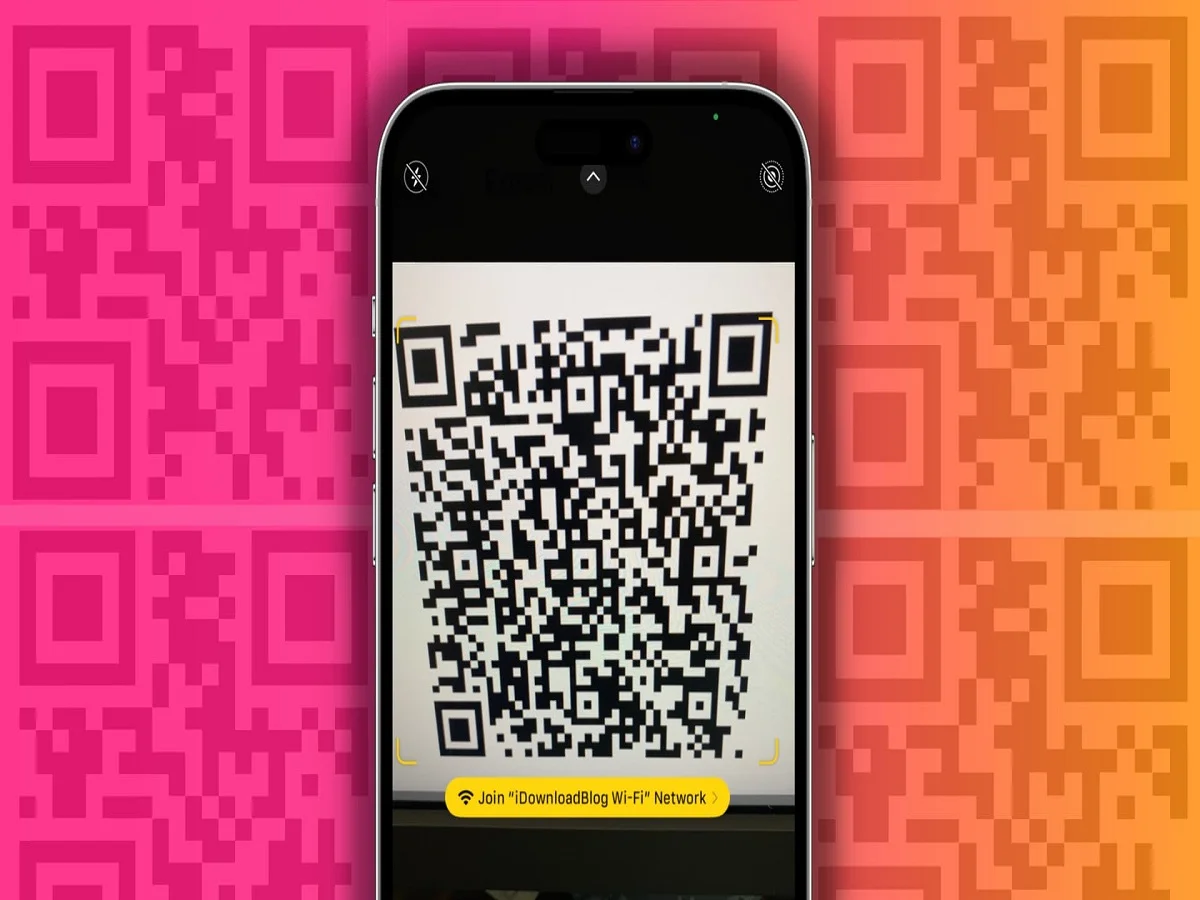
QR codes have become an important part of everyday digital life. Whether it is making online payments, opening websites, accessing restaurant menus, downloading apps, or verifying accounts, people now rely heavily on QR code scanning for fast and contactless access to information.
However, many Apple iPhone users occasionally face a frustrating issue where their device suddenly stops scanning QR codes properly. In some cases, the camera fails to recognize the code, while in others, the scanner simply does not respond.
The good news is that this problem is usually caused by small settings issues, camera errors, or minor software glitches that can often be fixed within a few minutes. Here are some effective troubleshooting steps that may help restore QR code scanning on your iPhone.
Check Whether QR Code Scanning Is Enabled
The first thing users should verify is whether the QR code scanning feature is turned on in the iPhone settings.
To check this:
- Open Settings
- Go to Camera
- Make sure Scan QR Codes is enabled
If this option is turned off, the iPhone camera will not recognize QR codes automatically.
After enabling the feature, users should reopen the Camera app and try scanning the QR code again.
Restart Your iPhone to Fix Minor Glitches
Sometimes temporary software bugs or background issues can interfere with the camera’s ability to detect QR codes.
Restarting the iPhone often helps refresh system processes and resolve small software-related problems.
To restart most modern iPhones:
- Press and release the Volume Up button
- Press and release the Volume Down button
- Then press and hold the Side Button until the Apple logo appears
After the device restarts, try opening the Camera app again to check if QR scanning has started working normally.
Use the Camera Correctly While Scanning
Improper camera usage can also prevent QR codes from scanning correctly.
Experts recommend using the standard Photo Mode in the Camera app while scanning QR codes. Users should avoid switching to:
- Ultra-Wide lens mode
- Telephoto mode
- Cinematic or Portrait modes
These modes may sometimes affect the camera’s focus and detection capability.
Additionally, enabling the Live Text feature can improve recognition of codes and text elements within the camera frame.
Small usage mistakes often create scanning issues even when the device itself is functioning properly.
Clean the Camera Lens Properly
A dirty or blurry camera lens can make it difficult for the iPhone to focus on QR codes accurately.
Dust, fingerprints, or smudges on the lens may interfere with scanning performance.
Users should:
- Gently clean the camera lens using a soft microfiber cloth
- Avoid using rough materials that could scratch the lens
- Ensure there is proper lighting around the QR code
Lighting also plays a major role in successful scanning. Very dark environments or excessive glare may prevent the camera from detecting the code properly.
Maintain the Correct Distance While Scanning
Distance matters when scanning QR codes.
Holding the phone too close or too far from the code can make focusing difficult for the camera. Experts recommend keeping the iPhone approximately 6 to 12 inches away from the QR code for better accuracy.
Users should also hold the phone steadily for a few seconds so the camera can recognize the code properly.
Try the Dedicated Code Scanner Feature
If the normal Camera app still fails to scan QR codes, iPhone users can use the dedicated built-in Code Scanner feature available in the Control Center.
To enable it:
- Open Settings
- Go to Control Center
- Add Code Scanner
This tool is specially designed for QR scanning and often works even when the standard camera scanner faces issues.
After enabling it, users can quickly access the scanner directly from the Control Center for faster QR recognition.
Keep iOS Updated
Outdated software can sometimes cause camera-related bugs or scanning issues.
Installing the latest iOS updates can improve system stability, camera performance, and QR detection accuracy.
To check for updates:
- Open Settings
- Tap General
- Select Software Update
Keeping the device updated also improves security and overall performance.
Simple Fixes Often Solve the Problem
In most cases, QR code scanning issues on iPhones are not caused by hardware damage. Small settings errors, dirty lenses, outdated software, or incorrect camera usage are usually responsible for the problem.
By checking camera settings, restarting the device, cleaning the lens, and using the dedicated Code Scanner feature, users can often restore normal QR scanning within minutes.
As QR codes continue to become more important in digital payments, online services, and app access, ensuring smooth scanner functionality has become essential for smartphone users.