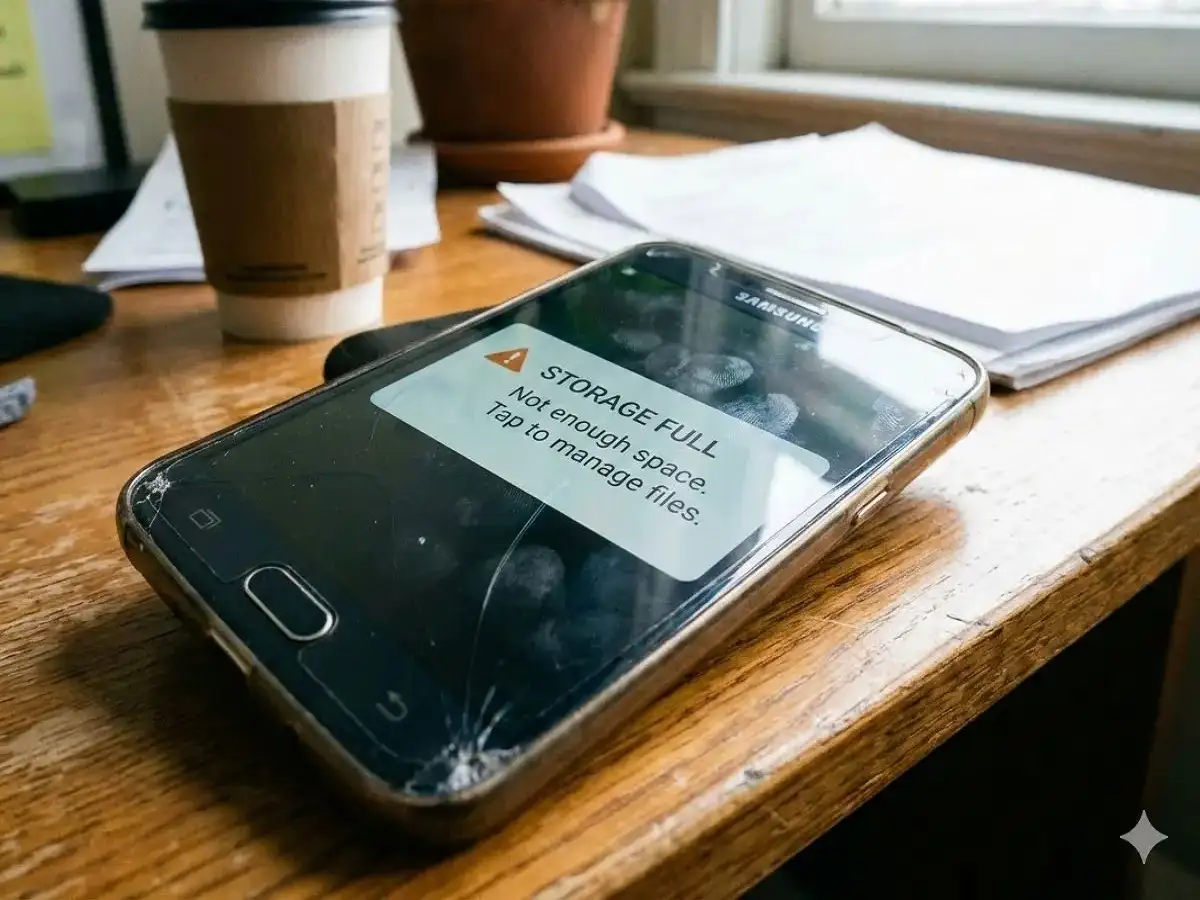
WhatsApp has become an essential communication platform for millions of smartphone users. Apart from text messages and calls, people regularly use the app to exchange photos, videos, documents, voice notes and other media. Over time, however, this constant flow of files can consume a significant amount of storage on a phone.
When the device starts running low on space, many users assume that deleting entire WhatsApp conversations is the only solution. That is not necessary in most cases. WhatsApp provides storage-management tools that allow users to identify and remove unwanted media while keeping important conversations intact.
If your phone is showing a storage warning because of WhatsApp, here are some practical ways to reclaim space without deleting valuable chats.
Use WhatsApp’s Storage Management Tool
One of the easiest ways to identify storage-heavy content is through WhatsApp’s built-in storage management section. It provides an overview of how much space WhatsApp is occupying and helps users locate large or frequently shared files.
Depending on the device and WhatsApp version, the storage section can highlight categories such as large files, frequently forwarded media and content from individual chats.
Instead of removing an entire conversation, you can review these files individually and delete only the items you no longer need.
Remove Large Media Files First
Large videos and documents can take up considerably more storage than ordinary text messages. Therefore, checking large files can be a good starting point when your phone is nearly full.
Open WhatsApp and go to Settings. From there, open Storage and Data and select Manage Storage. Look for the section containing large files, such as content larger than 5MB, if that option is available in your version of WhatsApp.
You can then review the displayed photos, videos, documents and other media. Select the files that are no longer useful and remove them.
This approach allows you to recover storage without touching the text portion of your conversations.
Check Frequently Forwarded Media
Another source of unnecessary storage usage can be media that has been repeatedly forwarded across different chats and groups.
WhatsApp’s storage-management area may provide a section for frequently forwarded content. Open it and review the available media before deleting anything.
You may find old videos, images, documents or audio files that have been shared multiple times but are no longer relevant. Removing these duplicates can free up space while leaving your conversations available for future reference.
Clean Up Individual Chats
If WhatsApp is still using a large amount of storage after removing bigger files, the next step is to examine individual conversations.
Some personal chats and groups may contain years of accumulated photographs, videos, documents and voice messages. Open a chat that appears to contain a lot of media and review its shared content.
You do not necessarily have to delete the conversation itself. The goal is to remove only unwanted media.
For example, you might keep an important conversation but delete dozens of old videos or duplicate images from it. This gives you more control over what stays on the device.
Limit Automatic Media Downloads
Prevention can be just as important as cleaning existing files. If photos and videos are automatically downloaded whenever they arrive, your phone can quickly accumulate media that you never actually wanted to save.
WhatsApp allows users to manage media auto-download preferences. Review these settings and consider limiting automatic downloads, particularly for mobile data or group conversations that frequently receive large amounts of media.
With more restrictive settings, files can be downloaded manually when you actually need them. This can reduce unnecessary storage consumption and may also help control mobile data usage.
Consider Disappearing Messages for Temporary Conversations
WhatsApp’s disappearing-message feature can be useful for conversations where long-term message retention is not important.
When enabled, messages can automatically disappear after the selected period. This may help reduce the amount of old content that remains in certain chats.
However, users should be careful when enabling this feature in conversations that contain important information, addresses, documents or other messages they may need later.
Review Before You Delete
While cleaning WhatsApp storage, it is important not to rush through the deletion process. Photos and videos can sometimes contain memories or information that cannot easily be recovered.
Before removing a large batch of files, check whether any important content needs to be saved elsewhere. You can transfer valuable photographs, videos or documents to another secure location before deleting them from the phone.
Also remember that deleting media from your device and deleting an entire WhatsApp conversation are two different actions. Choosing the appropriate option can help you free up space without losing useful conversations.
Why Regular WhatsApp Cleanup Is Helpful
Keeping WhatsApp storage under control can provide several benefits. More free space can improve the overall storage situation on your smartphone and make it easier to download new apps, capture photos or install system updates.
A regular cleanup can also reduce the amount of duplicate and unnecessary media stored on the device. In some situations, reducing the amount of WhatsApp media may also help keep backups more manageable.
The key is to focus on unnecessary files rather than deleting complete conversations.
Bottom Line
A full WhatsApp storage warning does not automatically mean that you need to erase your chats. By using the app’s storage-management features, removing large and repeatedly forwarded files, reviewing media-heavy conversations and controlling automatic downloads, you can reclaim valuable storage while keeping important conversations intact.
Making these checks part of your regular smartphone-maintenance routine can also prevent WhatsApp media from quietly consuming your available storage again.