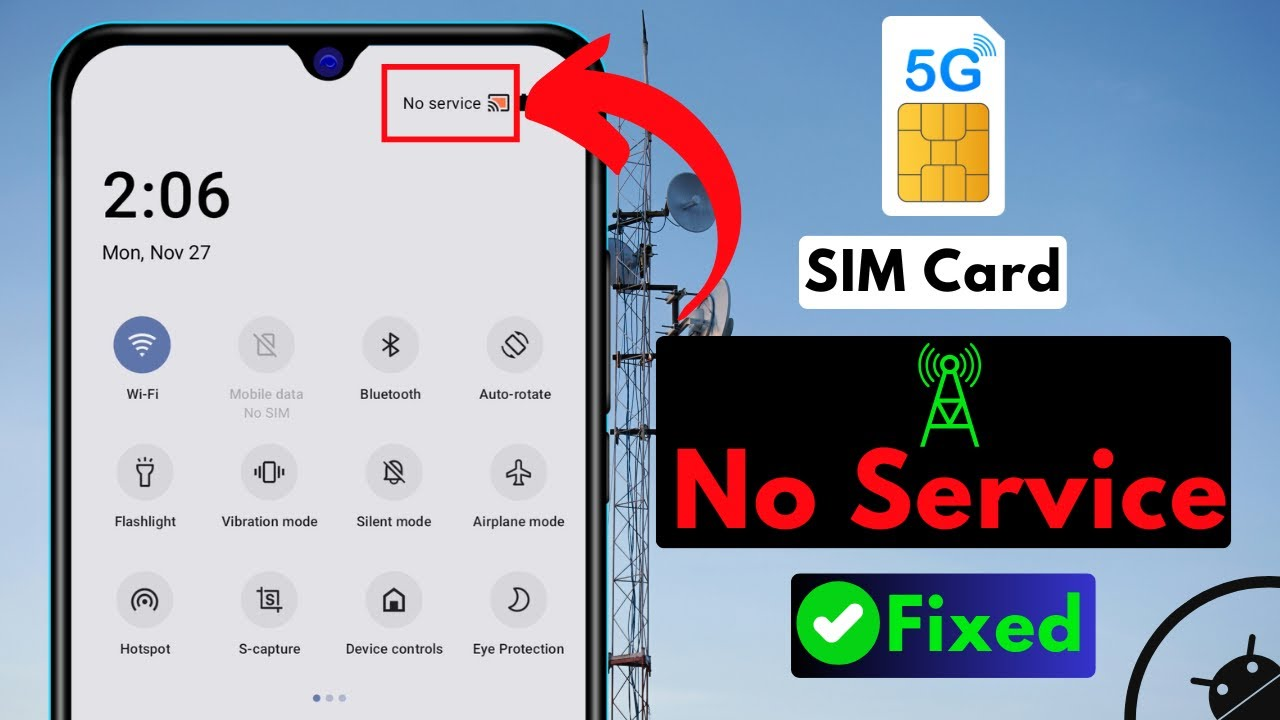
If your phone suddenly shows "No Service," stops calling, messaging, or mobile data, and if the network is missing even though the SIM is properly inserted, it doesn't necessarily mean the SIM is faulty. Find out the exact reason.
SIM network no service problem
If your phone suddenly displays "No Service" and calls, messages, or mobile data stop working, it's common to assume there's a problem with the SIM or network. However, this isn't always the cause. Sometimes, the SIM is inserted into the phone, and there's no apparent problem, yet the network connection still disappears.
In such a situation, there's no need to repeatedly remove the SIM or immediately get a new one. To fix this problem, a few simple settings and checks may be sufficient. Let's explore which settings to check if everything is working fine, but the SIM still displays "No Service."
First, check Airplane Mode.
Sometimes Airplane Mode is accidentally left on in your phone, causing the mobile connection to be lost. First, turn it off and check the network. If it's already off, turn it on for about 10 to 15 seconds and then turn it off. This will allow the phone to reconnect to the mobile network.
Which settings should I check if the SIM is showing no service?
If your phone isn't automatically connecting to the correct mobile network, check the Automatic Network Selection setting. Go to your phone's Settings and select Network & Internet or Mobile Network. Check to see if the Automatic Network Selection setting is enabled. Also, check the Network Mode setting and set it to Normal. The wrong network mode can also affect your connection.
Try 4G instead of 5G
In areas with weak or unstable 5G coverage, your phone may repeatedly switch between 5G and 4G. In this case, try temporarily changing the Preferred Network Type to 4G/LTE. If the signal stabilizes, the problem may be related to network switching.
Try reinserting the SIM.
Turn off the phone, remove the SIM card, and check for dust, scratches, or damage. Restart the phone with the SIM card inserted correctly in the tray. If using an eSIM, you can also check by turning the SIM card off and then on in Settings. If all other methods fail, you can reset your Network Settings. This will delete saved Wi-Fi networks, Bluetooth connections, and mobile network settings, but it won't delete your phone's apps, photos, or personal data.
Try restarting the phone
Sometimes, a temporary software issue can cause the network connection to stop. In this case, restarting the phone is a simple solution. After restarting, give the phone some time to connect to the network. Therefore, instead of immediately deciding to change the SIM card after seeing "No Service," it's best to check these basic settings first.