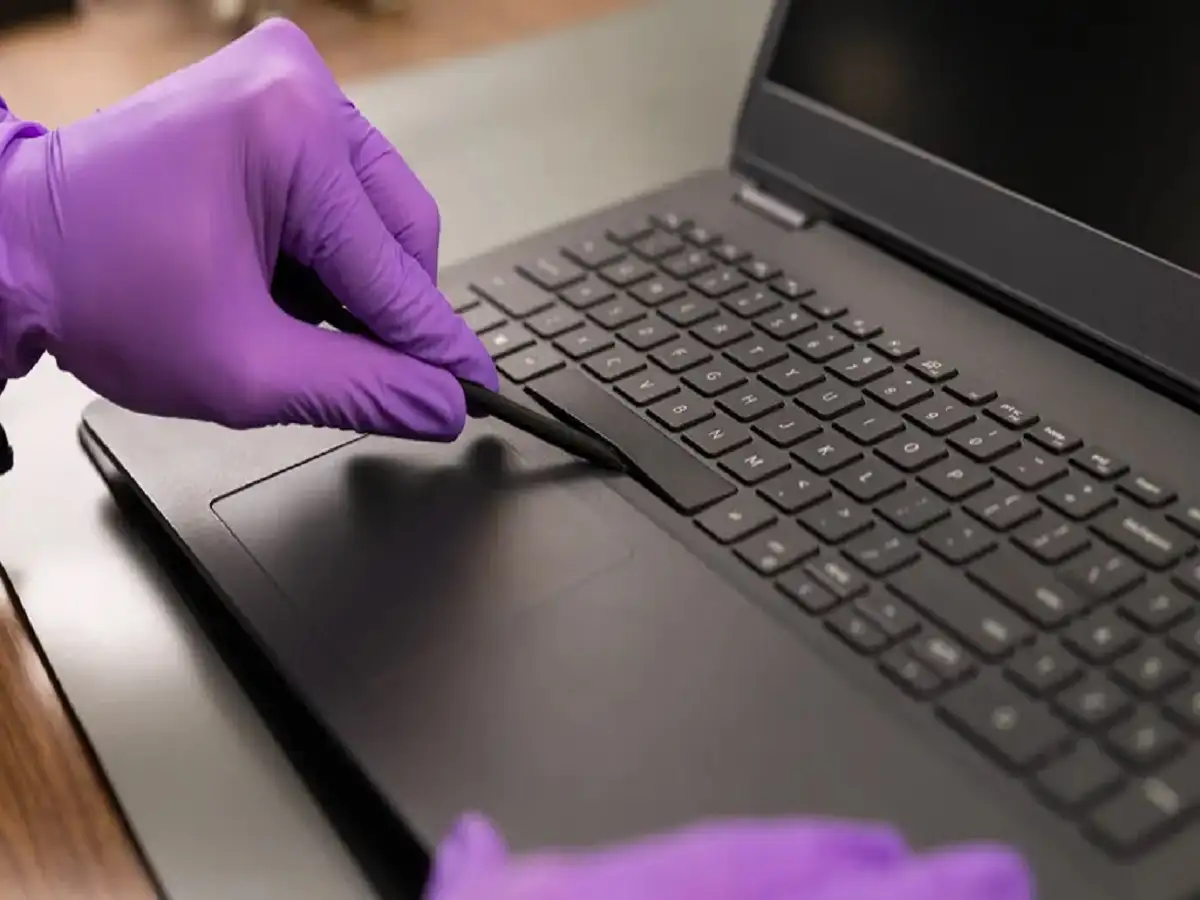
Laptop Keyboard Tips 2026: Imagine working on an important office presentation, preparing an urgent email, or completing an online application when your laptop keyboard suddenly stops responding. Such a situation can be frustrating, especially when you do not have an external USB keyboard available.
Fortunately, a malfunctioning physical keyboard does not necessarily mean you must stop working immediately. Modern laptops running Windows and macOS include accessibility features that allow users to type using a mouse, touchpad, or voice commands.
From activating a virtual keyboard to checking accessibility settings, several simple solutions can help you continue working while you identify the cause of the problem.
Here is a detailed guide to using your laptop when the keyboard stops functioning.
1. Use the On-Screen Keyboard in Windows 10 and Windows 11
Microsoft Windows includes a built-in feature called the On-Screen Keyboard, which allows users to enter letters, numbers, and symbols without relying on a physical keyboard.
This feature can be particularly helpful when some keyboard keys stop responding or the entire keyboard becomes temporarily unusable.
The virtual keyboard appears on your laptop screen, allowing you to select individual keys using your mouse or touchpad.
How to Open the On-Screen Keyboard Using a Shortcut
If your keyboard is partially working, you can activate the feature using a simple shortcut.
- Press Windows + Ctrl + O simultaneously.
- Wait for the On-Screen Keyboard to appear.
- Use your mouse or touchpad to select letters and numbers.
- Start typing in documents, search boxes, emails, or other supported applications.
This shortcut works on supported Windows 10 and Windows 11 systems.
It can save considerable time when you need to complete urgent tasks.
How to Enable the Virtual Keyboard Without Using Physical Keys
If your entire keyboard has stopped responding, you can activate the same feature through Windows Settings.
Follow these steps:
- Click the Start button using your mouse.
- Open Settings.
- Select Accessibility in Windows 11, or Ease of Access in Windows 10.
- Find and open the Keyboard section.
- Turn on the On-Screen Keyboard option.
Once activated, the virtual keyboard will appear on your display.
You can then click the required keys to type messages, enter information, or complete essential tasks.
Although typing with a mouse may be slower than using a physical keyboard, it provides a practical temporary solution.
2. MacBook Keyboard Not Working? Enable Apple's Accessibility Keyboard
MacBook users also have an alternative when their physical keyboard becomes unresponsive.
Apple provides an Accessibility Keyboard that allows users to enter text using a mouse, trackpad, or other supported pointing device.
This feature is particularly useful for users who need to continue working while arranging a keyboard repair.
Steps to Activate the Accessibility Keyboard on MacBook
- Click the Apple menu in the upper-left corner of the screen.
- Open System Settings.
- Select Accessibility.
- Click Keyboard.
- Enable Accessibility Keyboard.
A virtual keyboard should now appear on the screen.
You can use your MacBook's trackpad or a connected mouse to select letters, numbers, and other available controls.
This feature can help with writing emails, searching the internet, and completing documents.
Another Option: Use Keyboard Viewer on Mac
Mac users can also access Keyboard Viewer through the input menu.
Depending on the macOS version, the relevant setting can be found under System Settings and Keyboard.
After enabling the input menu in the menu bar, select Show Keyboard Viewer.
The Keyboard Viewer displays an interactive keyboard layout that can be used for basic text entry.
Menu names and locations may vary slightly between macOS versions.
3. Check Whether Filter Keys Is Causing the Problem
A keyboard that appears to have stopped working may not always have a hardware fault.
Sometimes, an accessibility setting can change how the keyboard responds to keystrokes.
One such Windows feature is Filter Keys.
Filter Keys is designed to help users who have difficulty controlling repeated or brief keystrokes. When enabled, it can cause Windows to ignore certain key presses or require keys to be held longer.
As a result, users may mistakenly believe their keyboard is malfunctioning.
How to Turn Off Filter Keys in Windows
- Open Windows Settings.
- Select Accessibility.
- Navigate to Keyboard.
- Locate Filter Keys.
- Check whether the feature is enabled.
- Turn it off if you do not need it.
After disabling Filter Keys, test the keyboard again.
If the keys begin responding normally, the issue may have been related to the accessibility setting rather than a physical defect.
You can also review the keyboard shortcut settings associated with Filter Keys to prevent accidental activation in the future.
4. Use Voice Typing to Write Emails and Documents
Typing through an on-screen keyboard can be useful for short messages, but entering long documents this way may take considerable time.
Voice typing offers another convenient solution.
Windows includes a voice typing feature that converts spoken words into written text.
This can be helpful when preparing lengthy emails, reports, notes, or articles.
How to Enable Voice Typing in Windows
If your keyboard is partially functional, follow these steps:
- Open an application or text field where you want to type.
- Press Windows + H.
- The voice typing interface should appear.
- Allow microphone access if requested.
- Select the microphone button and begin speaking.
- Your spoken words will be converted into text.
Voice typing requires a working microphone and an internet connection for Microsoft's Windows voice typing service.
You should also ensure that the appropriate language is supported and configured.
If your physical keyboard is completely unresponsive, the Windows + H shortcut will not be available. In that situation, you can use the on-screen keyboard to trigger the shortcut or use another accessible input method.
Can MacBook Users Type Using Their Voice?
Yes. MacBook users can use Apple's built-in Dictation feature.
To enable it, open System Settings, select Keyboard, and find the Dictation settings.
Once Dictation is enabled, users can activate it through the configured shortcut or supported menu option.
They can then speak into the MacBook microphone to enter text in compatible applications.
Voice typing can be particularly helpful for users who need to complete urgent writing tasks without a functioning physical keyboard.
5. Restart Your Laptop and Check for Temporary Software Problems
If your laptop keyboard suddenly stops responding, a temporary software issue may be responsible.
Before assuming the keyboard requires replacement, try restarting the laptop.
A restart can sometimes resolve temporary problems involving keyboard drivers, system processes, or software conflicts.
Windows users can also check Device Manager for keyboard-related driver problems.
If a driver issue is suspected, use Windows Update or the laptop manufacturer's official support resources to obtain the appropriate software.
Avoid downloading keyboard drivers from unfamiliar third-party websites.
For MacBook users, installing available macOS updates may help resolve certain software-related input problems.
However, if the keyboard has suffered liquid damage, physical impact, or another hardware failure, professional inspection may be necessary.
Important Laptop Keyboard Shortcuts You Should Know
| Shortcut or Feature | Operating System | Function |
|---|---|---|
| Windows + Ctrl + O | Windows 10/11 | Opens On-Screen Keyboard |
| Windows + H | Windows 10/11 | Activates Voice Typing |
| Settings → Accessibility → Keyboard | Windows 11 | Accesses keyboard accessibility options |
| Settings → Ease of Access → Keyboard | Windows 10 | Opens keyboard accessibility settings |
| Accessibility Keyboard | macOS | Enables virtual keyboard |
| Keyboard Viewer | macOS | Displays an interactive keyboard |
| Dictation | macOS | Converts speech into text |
What Should You Do If the Keyboard Still Does Not Work?
If the keyboard remains unresponsive after checking accessibility settings and restarting the laptop, the problem may require further investigation.
A few practical checks can help identify the issue.
First, determine whether the problem affects every key or only a few specific keys. If certain keys work while others do not, there may be a localised hardware problem.
Second, check whether the keyboard responds before the operating system fully loads, where an appropriate startup or diagnostic interface is available. This may help distinguish software issues from hardware faults.
Third, consider connecting an external USB or Bluetooth keyboard as a temporary alternative.
Finally, if the laptop has recently been exposed to liquid, avoid repeatedly testing it. Shut it down safely, disconnect external power when appropriate, and seek professional assistance.
Final Thoughts
A laptop keyboard that suddenly stops working can interrupt important tasks, but built-in accessibility features provide several useful alternatives.
Windows users can activate the On-Screen Keyboard through Windows + Ctrl + O, while MacBook users can enable Apple's Accessibility Keyboard.
Checking Filter Keys settings may resolve some apparent keyboard problems, and voice typing can make writing lengthy documents easier.
These solutions can help users continue working temporarily, but they do not replace professional repair when the underlying problem involves damaged hardware.