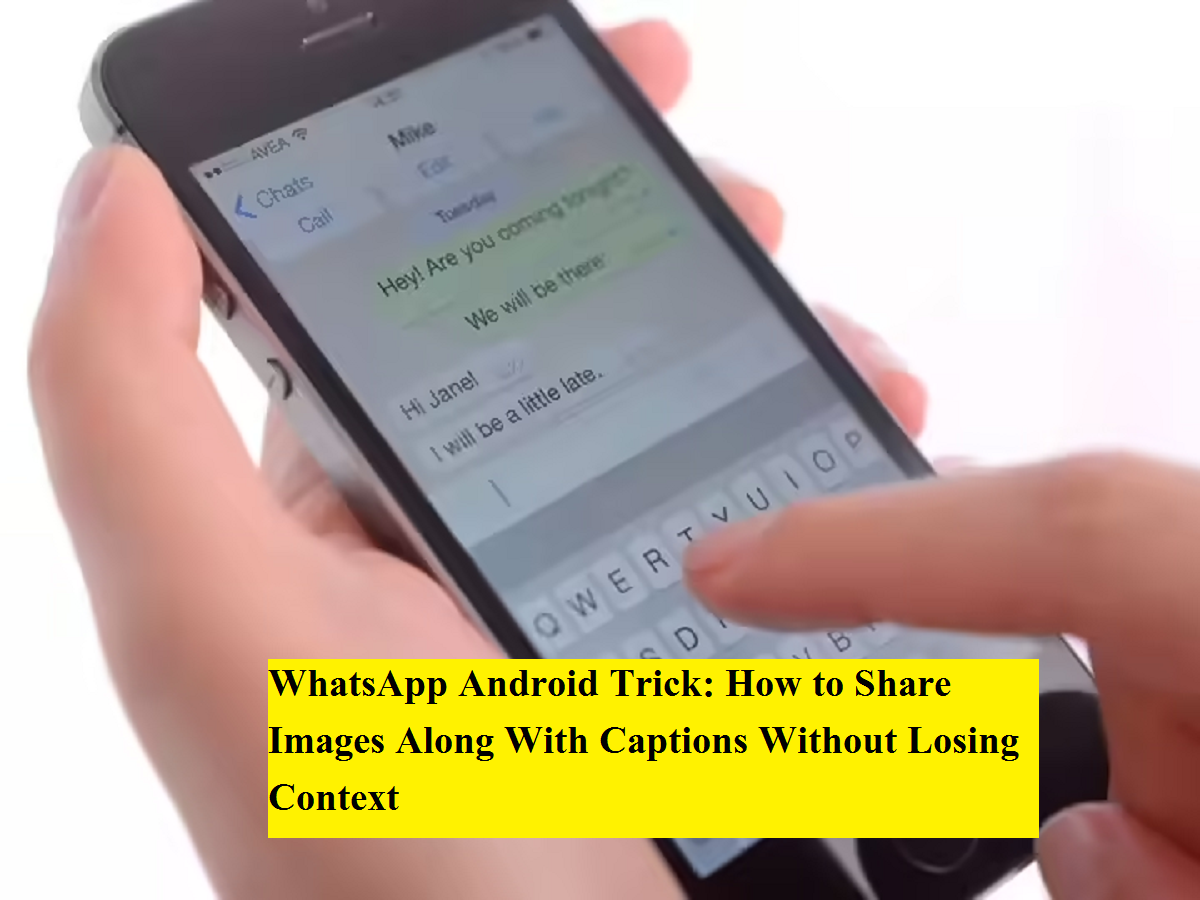
WhatsApp is one of the most widely used messaging platforms, allowing users to exchange text messages, photos, videos, documents, and voice notes with ease. One of its most frequently used features is message forwarding, which helps users quickly share content from one chat to another, whether it’s a personal conversation or a group discussion.
However, many Android users face a common issue when forwarding images on WhatsApp. When a photo includes a caption and is forwarded using the regular forward option, the caption often disappears. This can sometimes confuse the receiver, as captions usually provide important context or explanation for the image.
The good news is that WhatsApp does offer a way to forward images along with their captions on Android devices. While the method is slightly different from the standard forward option, it ensures that both the image and the text reach the recipient exactly as intended.
How WhatsApp’s Forwarding Feature Works
WhatsApp allows users to forward messages and media from one chat to another using the built-in forward button. Forwarded messages are clearly marked with a “Forwarded” label, helping users identify content that was not originally written by the sender.
However, when images with captions are forwarded using this default method, WhatsApp treats the image and caption separately, often resulting in the caption being removed during forwarding. This design choice can be inconvenient, especially when captions contain essential details such as instructions, descriptions, or explanations.
Why Forwarding Images With Captions Matters
Captions often play a crucial role in understanding an image. Without the accompanying text, the receiver may misinterpret the message or miss key information. This is particularly important when sharing:
- Informational images
- Screenshots with explanations
- Event details or announcements
- Work-related visuals
Keeping the caption intact ensures clarity and avoids unnecessary follow-up questions.
Step-by-Step Guide to Forward WhatsApp Images With Captions on Android
Follow these simple steps to forward an image along with its caption:
- Open the WhatsApp chat where the image with the caption is located.
- Tap and hold the image until a menu appears.
- Instead of using the forward arrow, tap on the Share icon.
- From the sharing options, select WhatsApp.
- Choose the individual chat or group where you want to send the image.
- Before sending, you can edit the image, modify the caption, enable the view-once option, or send it as it is.
- Tap Send, and the image will be shared along with its caption.
This method ensures that the caption stays attached to the image when it reaches the recipient.
WhatsApp Forwarding Limits You Should Know
To prevent the spread of misinformation, WhatsApp has introduced certain restrictions on message forwarding:
- A message can be forwarded to up to five chats at once.
- If a message has already been forwarded multiple times, it can only be sent to one chat at a time.
- Forwarding limits apply to both text messages and media files.
These limits are designed to promote responsible sharing while still allowing users to communicate effectively.
Final Thoughts
Forwarding images with captions on WhatsApp Android may not be immediately obvious, but once you know the correct method, it becomes simple and convenient. Using the share option instead of the forward button helps maintain context and ensures the recipient understands the message clearly.
As WhatsApp continues to evolve, understanding such small but useful features can significantly improve everyday communication.