In today’s smartphone-driven world, internet connectivity is essential. From social media and payments to work and entertainment—everything depends on mobile data. But what if your data pack is active and the internet still doesn’t work?
Many users face this issue and often end up recharging again unnecessarily. The truth is, in most cases, the problem lies in simple phone settings—not your recharge.
Here’s a complete guide to fix mobile internet issues quickly and boost your speed.
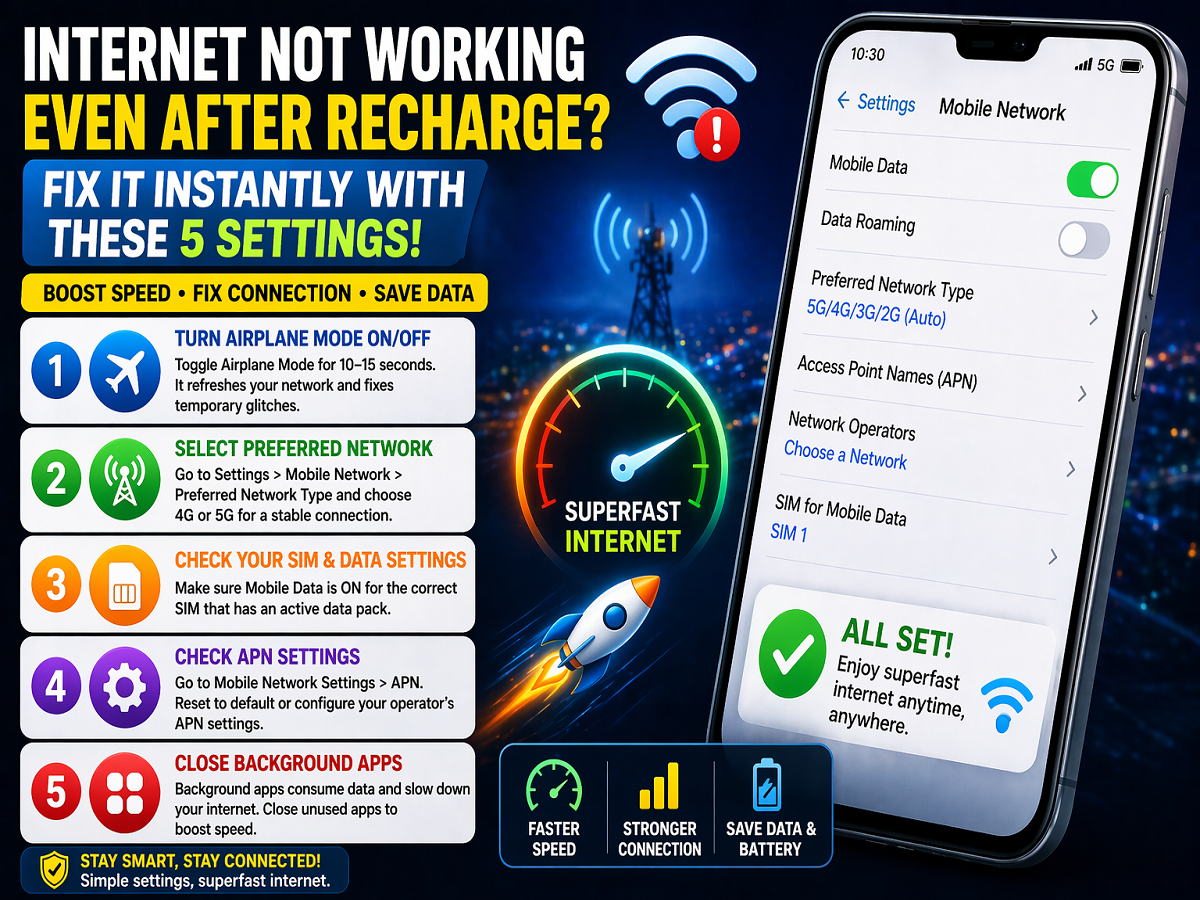
1. Turn Airplane Mode ON and OFF
One of the quickest fixes is toggling Airplane Mode.
- Turn ON Airplane Mode for 10–15 seconds
- Then turn it OFF
This refreshes your network connection and reconnects your phone to the nearest tower. It often fixes sudden internet issues and even improves speed.
2. Restart Your Phone
If Airplane Mode doesn’t work, try restarting your device.
- Restarting clears temporary glitches
- It refreshes network settings and background processes
Sometimes, your phone may hang or lose connection due to minor bugs, and a simple restart can fix it instantly.
3. Manually Select Network Type (4G/5G)
Most smartphones run on “Auto Network Mode,” which keeps switching between networks. This can sometimes cause unstable internet.
To fix this:
- Go to Settings > Mobile Network
- Select Preferred Network Type
- Choose 4G or 5G manually
This ensures a stable connection instead of constant switching.
4. Check Your SIM and Data Settings
If you’re using a dual SIM phone, this is a common mistake:
- Data may be turned ON for the wrong SIM
- The SIM with the active recharge may not be selected
Go to your settings and ensure:
- Mobile data is enabled for the correct SIM
- The selected SIM has an active data plan
This simple check can save you from unnecessary recharges.
5. Review APN Settings and Close Background Apps
If the issue persists, check your APN (Access Point Name) settings:
- Go to Mobile Network Settings > APN
- Reset to default or reconfigure based on your operator
Also:
- Close unused background apps
- Too many apps running can slow down internet speed
These steps help optimize performance and restore connectivity.
Bonus Tip: Check Signal Strength and Location
Sometimes, the issue isn’t your phone—it’s the network.
- Weak signal areas (basements, remote locations) affect speed
- Try moving to an open area or near a window
Final Takeaway
If your internet isn’t working despite an active recharge, don’t panic or recharge again immediately. Most issues can be fixed with simple settings like Airplane Mode, network selection, or SIM configuration.
A few quick checks can save both your time and money—while getting your internet back to full speed in minutes.