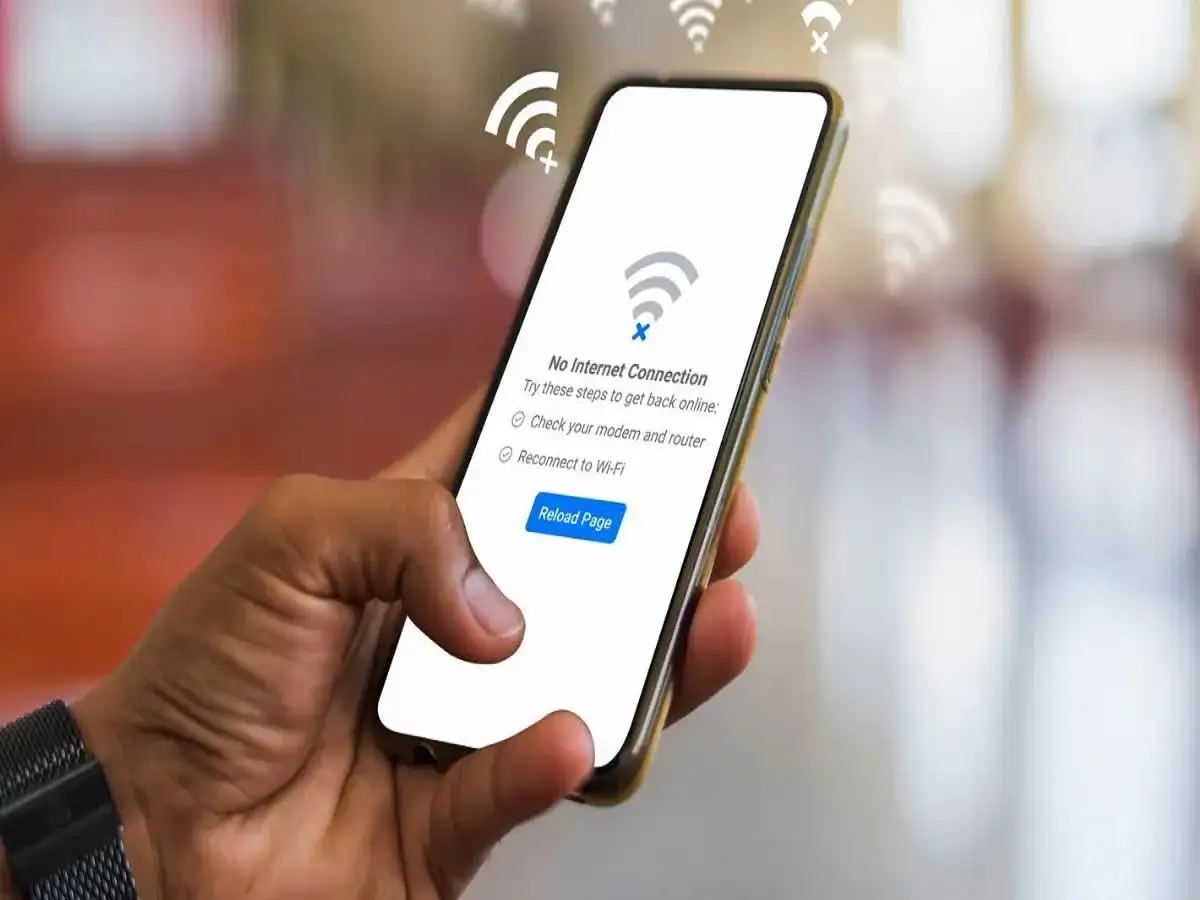
Wi-Fi Tips: A slow Wi-Fi connection can disrupt everything from video calls and online classes to streaming and gaming. While many people immediately blame their internet service provider, the problem is often caused by issues within the home network. Router placement, connected devices, outdated software, and signal interference can all affect Wi-Fi performance. Here's what may be slowing down your internet and how to improve it.
Why Wi-Fi Speed Drops at Home
A stable internet connection has become essential for work, entertainment, education, and communication. However, many households experience sudden drops in Wi-Fi speed even when they have a high-speed broadband plan.
In many cases, the issue isn't with the internet provider but with the way the home Wi-Fi network is set up or managed. Fortunately, several common causes can often be identified and resolved without changing your broadband plan.
1. Router Placement Can Affect Signal Strength
The location of your Wi-Fi router has a major impact on wireless coverage.
Keeping the router inside a cabinet, behind thick walls, in a corner of the house, or near the floor can weaken the signal and create dead zones where internet performance drops significantly.
For better coverage:
- Place the router in a central location.
- Keep it elevated on a shelf or table.
- Avoid enclosing it inside cupboards or cabinets.
- Ensure there are minimal obstacles around the router.
A well-positioned router allows signals to spread more evenly throughout your home.
2. Too Many Connected Devices Can Slow the Network
Every device connected to your Wi-Fi shares the available internet bandwidth.
If multiple smartphones, laptops, smart TVs, gaming consoles, tablets, security cameras, and smart home devices are using the network simultaneously, internet speed may decrease—especially during bandwidth-heavy activities such as 4K streaming or online gaming.
To improve performance:
- Disconnect devices that are not currently in use.
- Limit unnecessary background downloads.
- Consider upgrading your broadband plan if your household regularly uses many devices at the same time.
3. Restart Your Router Regularly
Many users leave their Wi-Fi routers running continuously for weeks or even months.
Over time, temporary software glitches, memory usage, and network congestion may reduce router performance.
Restarting the router every few days can help:
- Refresh the network connection
- Clear temporary system errors
- Improve overall stability
- Restore normal internet performance
A simple restart often resolves minor connectivity issues.
4. Keep Router Firmware Updated
Your router's firmware controls how it operates.
Manufacturers regularly release firmware updates that can:
- Improve network stability
- Fix software bugs
- Enhance Wi-Fi performance
- Strengthen security against cyber threats
If your router supports automatic updates, ensure the feature is enabled. Otherwise, check the manufacturer's settings page periodically for available updates.
5. Electronic Devices Can Interfere With Wi-Fi Signals
Certain household electronics can interfere with wireless signals, especially on the 2.4 GHz Wi-Fi band.
Common sources of interference include:
- Microwave ovens
- Bluetooth speakers
- Cordless phones
- Baby monitors
- Wireless security devices
Keeping the router away from these devices may help improve signal quality and reduce unexpected connection drops.
6. Physical Obstacles Can Weaken Wi-Fi Coverage
Wi-Fi signals can lose strength when they pass through physical barriers.
Objects that commonly reduce signal quality include:
- Thick concrete walls
- Metal doors
- Large furniture
- Mirrors
- Metal cabinets
If possible, position the router where fewer obstacles block the signal path between the router and frequently used devices.
Additional Tips to Improve Wi-Fi Speed
You can also try these practical steps to optimize your home network:
Use the Right Wi-Fi Band
If your router supports dual-band Wi-Fi:
- 2.4 GHz offers better range but lower speeds.
- 5 GHz provides faster speeds over shorter distances with less interference.
Choose the band that best suits your needs.
Secure Your Wi-Fi Network
Protect your network with a strong password to prevent unauthorized users from consuming your bandwidth.
Upgrade Older Routers
Older routers may not support the latest Wi-Fi standards. If your device is several years old, upgrading to a newer model may improve speed, coverage, and security.
Test Your Internet Speed
Run periodic speed tests to compare actual performance with your subscribed broadband plan. If speeds remain consistently below expected levels after troubleshooting, contact your internet service provider.
When Should You Contact Your Internet Provider?
If you've optimized your home network and still experience:
- Frequent disconnections
- Extremely slow speeds
- High latency during video calls or gaming
- Speed far below your subscribed plan
the issue may lie outside your home network. In such cases, your ISP can check for line faults, network congestion, or service outages.
Final Thoughts
Slow Wi-Fi isn't always caused by your internet service provider. Factors such as poor router placement, too many connected devices, outdated firmware, electronic interference, and physical obstacles can all affect network performance.
By placing your router correctly, restarting it regularly, updating its firmware, reducing interference, and managing connected devices, you can often improve your Wi-Fi speed and enjoy a more stable internet connection throughout your home.