Step-by-Step Guide to Enable a VPN on Android, Protect Your Data, and Browse the Internet More Securely
Online privacy has become more important than ever as cyber threats, data tracking, and public Wi-Fi risks continue to grow. Whether you're using your smartphone at a café, airport, hotel, or any public hotspot, your personal information can be exposed if your internet connection isn't properly protected.
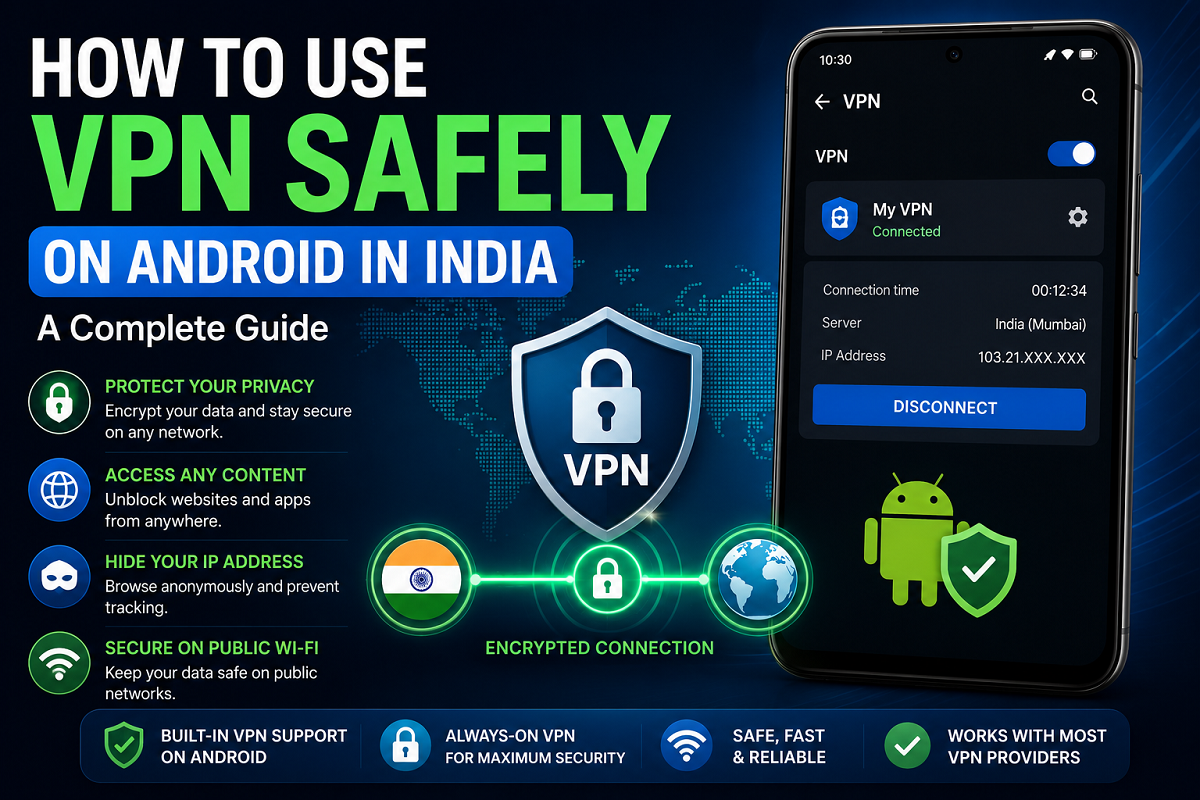
One of the most effective ways to improve online security is by using a Virtual Private Network (VPN). A VPN encrypts your internet traffic, hides your IP address, and creates a secure connection between your Android device and the internet.
Android smartphones also include built-in VPN support, allowing users to configure a VPN manually without installing additional software. Alternatively, you can use trusted third-party VPN services that offer dedicated Android apps with advanced security features.
Here's everything you need to know about using a VPN safely on an Android phone in India.
What Does a VPN Actually Do?
A Virtual Private Network, commonly known as a VPN, creates a secure and encrypted tunnel for your internet traffic.
Normally, when you browse the web, your internet activity travels directly between your device and your internet service provider (ISP). A VPN changes this process by routing your data through encrypted servers before it reaches the websites or online services you access.
This additional layer of protection helps safeguard sensitive information from hackers, especially when you're connected to unsecured public Wi-Fi networks.
Another major benefit is enhanced privacy. Since websites see the VPN server's IP address instead of your actual IP address, your online identity becomes more difficult to track.
Why Android Users Should Consider Using a VPN
Using a VPN offers several advantages beyond protecting personal information.
Some of the key benefits include:
- Encrypts internet traffic to improve online security.
- Protects personal data while using public Wi-Fi.
- Hides your real IP address from websites.
- Helps reduce online tracking by advertisers.
- Allows access to content that may be restricted in certain regions.
- Adds an extra layer of privacy while browsing.
Although a VPN improves security, users should remember that it does not make them completely anonymous online. Safe browsing habits remain equally important.
Choosing the Right VPN Service
Before configuring a VPN, select a trusted provider with a strong reputation for privacy and security.
Look for services that offer:
- Strong encryption standards.
- No-log privacy policy.
- Fast connection speeds.
- Reliable customer support.
- Regular security updates.
- Servers in multiple countries.
Google also provides built-in VPN management on Android, allowing users to configure VPN connections without relying solely on third-party applications. Some Pixel devices running newer Android versions also include Google's VPN service.
How to Add a VPN on an Android Phone
Setting up a VPN manually is a straightforward process.
Follow these steps:
- Subscribe to a trusted VPN provider if required.
- Obtain the VPN configuration details, including the server address, username, and password.
- Open the Settings app on your Android smartphone.
- Tap Network & Internet.
- Select VPN.
- Tap the Add (+) button.
- Enter all the required VPN information provided by your VPN service.
- Save the configuration.
Once saved, the VPN profile will appear in your list of available VPN connections.
How to Connect to a VPN
After creating the VPN profile, connecting takes only a few seconds.
- Open Settings.
- Go to Network & Internet.
- Tap VPN.
- Select the VPN profile you created.
- Tap Connect.
Once connected, your internet traffic will begin flowing through the encrypted VPN server.
Enable Always-On VPN for Better Protection
If you frequently use public networks, enabling Always-On VPN can provide continuous protection.
Here's how:
- Open Settings.
- Navigate to Network & Internet > VPN.
- Tap the settings icon beside your preferred VPN.
- Enable the Always-On VPN option.
- Save your changes.
With this setting enabled, Android automatically connects to the VPN whenever your phone accesses the internet, reducing the chances of accidentally browsing without encryption.
How to Confirm Your VPN Is Working
Android makes it easy to verify whether your VPN is active.
When connected, you'll usually see a small key or VPN icon in the status bar at the top of your screen.
You can also revisit the VPN section in Settings to check the current connection status.
Is a VPN Safe to Use?
Using a reputable VPN service is generally considered safe and can significantly improve online privacy.
However, users should avoid free VPN services with unclear privacy policies, as some providers may collect browsing data or display excessive advertisements.
For better protection, always choose a trusted provider that clearly explains how your data is handled.
Frequently Asked Questions
Do I need to pay for a VPN?
Not always. Some Android devices, including certain Google Pixel smartphones, include access to Google's VPN service. Many third-party providers also offer both free and premium plans with different features.
Can a VPN completely hide my online activity?
A VPN greatly enhances privacy by encrypting internet traffic and masking your IP address. However, it cannot guarantee complete anonymity if users share personal information online or visit unsecured websites.
Should I leave my VPN turned on all the time?
Keeping an Always-On VPN enabled is recommended, especially if you frequently connect to public Wi-Fi networks. It helps ensure your internet traffic remains encrypted whenever your device goes online.
Final Thoughts
A VPN is one of the simplest yet most effective tools for improving online security on Android devices. Whether you're working remotely, accessing public Wi-Fi, or simply looking to strengthen your digital privacy, configuring a trusted VPN can help protect your personal information from cyber threats.
By selecting a reliable VPN provider, enabling Always-On VPN, and following safe browsing practices, Android users can enjoy a more secure and private internet experience without complicated setup procedures.