NEWS
Moving to iPhone? Here's the Easiest Way to Transfer Your WhatsApp Chats From Android Without Losing Data
WhatsApp Makes Android-to-iPhone Chat Migration Simple—Follow These Easy Steps to Move Messages and Media Securely
Switching from an Android smartphone to an iPhone no longer means saying goodbye to years of WhatsApp conversations. Meta has introduced an official chat migration feature that enables users to move their WhatsApp account, including messages and supported media files, directly from Android to iPhone without using third-party applications.
Unlike older methods that relied on cloud backups or unofficial tools, the built-in transfer process securely moves your chat history over a local Wi-Fi connection. This makes the migration faster, safer, and more reliable while ensuring your private conversations remain protected.
If you're planning to upgrade to an iPhone, here's everything you need to know before transferring your WhatsApp chats.
WhatsApp Now Supports Direct Chat Transfers Between Android and iPhone
WhatsApp has significantly improved its migration tools by allowing users to transfer chat history across different mobile operating systems.
Previously, Android users stored WhatsApp backups on Google Drive, while iPhone users relied on iCloud. Since these backup systems are incompatible, moving chats between the two platforms was often complicated.
The latest transfer feature eliminates this issue by creating a direct connection between your Android device and your iPhone. Instead of uploading data to cloud servers, the transfer happens locally, helping users keep their conversations private throughout the process.
According to Meta, the company cannot read or access the content being transferred during the migration.
Things to Check Before Starting the Transfer
Before moving your WhatsApp account, make sure both devices meet the required conditions.
- Install the latest version of WhatsApp on both your Android phone and iPhone.
- Use the same mobile number on both devices.
- Connect both devices to a stable Wi-Fi network.
- Ensure both smartphones have sufficient battery charge or keep them plugged into power.
- Verify that your iPhone has enough available storage to accommodate all chats, photos, videos, voice notes, and other supported files.
Completing these checks beforehand can help avoid interruptions during the migration process.
Important Limitations You Should Know
Although the transfer feature works smoothly for most users, there are a few restrictions.
WhatsApp does not allow users to combine old conversations already stored on the iPhone with chats being transferred from Android. The migration completely replaces the WhatsApp data on the destination device.
Additionally, you cannot move chats to a different phone number during the process. If you plan to change your mobile number, you'll need to update it within WhatsApp before initiating the transfer.
Some types of content are also excluded from migration, including WhatsApp Business account data, payment history, payment messages, and status updates.
How to Transfer WhatsApp Chats From Android to iPhone
Follow these steps to move your WhatsApp account safely.
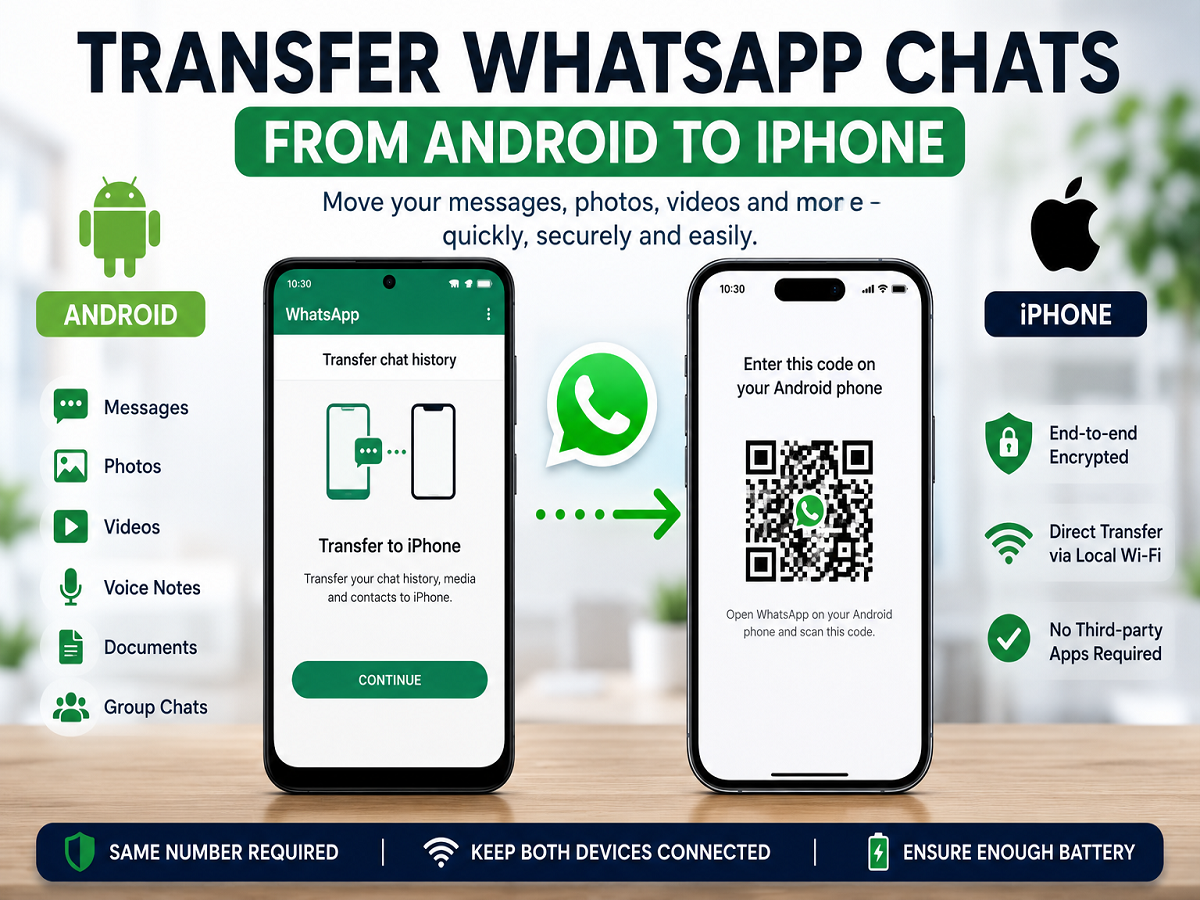
Step 1: Prepare Chat Transfer on Android
Open WhatsApp on your Android smartphone.
Go to:
Chats → Transfer Chat History → Transfer to iPhone
Tap Continue and allow WhatsApp to prepare your chat history.
If requested, grant camera permission so your Android phone can scan a QR code later.
Keep the phone unlocked during the entire process.
Step 2: Set Up WhatsApp on Your iPhone
Install and open WhatsApp on your iPhone.
Verify your account using the same phone number currently active on your Android device.
When prompted, allow WhatsApp to establish a connection with the Android phone.
Step 3: Scan the QR Code
A QR code will appear on your iPhone.
Use your Android phone to scan the code.
Once prompted, tap Join to connect to the temporary Wi-Fi network created specifically for the migration.
This secure connection enables WhatsApp to transfer your conversations directly between the devices.
Step 4: Wait for the Transfer to Finish
The transfer time depends on the amount of data stored in your WhatsApp account.
Large chat histories containing videos, photos, and documents may take longer.
Avoid closing WhatsApp or locking either device until the migration is complete.
Step 5: Complete the Setup
After the transfer finishes, tap Next on your iPhone.
WhatsApp will automatically load your messages, media files, and conversations onto the new device.
You can immediately continue using WhatsApp from your iPhone without manually restoring any backup.
What Data Will Be Transferred?
The migration process supports most personal WhatsApp content, including:
- Individual chats
- Group conversations
- Photos
- Videos
- Voice messages
- Documents
- Chat settings
Once completed, your conversations will appear on your iPhone in much the same way they existed on your Android device.
Will You Still Be Able to Use WhatsApp on Android?
No.
WhatsApp allows only one primary device per account.
As soon as your account is activated on the iPhone, WhatsApp automatically signs you out of the Android phone.
If you wish to continue accessing WhatsApp on the old device, it can later be linked as a companion device rather than serving as the primary account.
Frequently Asked Questions
Does the transfer require Google Drive or iCloud?
No. The migration happens directly between the Android phone and iPhone over a secure local connection, eliminating the need for cloud backups.
Can I transfer chats using a different phone number?
No. Both devices must use the same verified mobile number during the migration process.
Are photos and videos transferred too?
Yes. Supported media files, including images, videos, voice notes, and documents, are transferred along with your messages.
Final Thoughts
WhatsApp's official Android-to-iPhone migration feature has made switching smartphones much more convenient. By eliminating the need for third-party software and cloud backup workarounds, users can securely move years of conversations, media, and important chats with minimal effort.
As long as both devices are updated, connected properly, and using the same phone number, the entire migration process can be completed in just a few simple steps, making the transition to an iPhone smoother than ever before.