NEWS
Instagram Story Tips: How to Add Multiple Photos, Create Stunning Collages and Share Pictures in One Go
Instagram Stories have become a popular way to share everyday experiences, holiday memories, birthday celebrations and special occasions. However, when you have several photographs from the same event, uploading each picture individually can be time-consuming.
Fortunately, Instagram offers several built-in features that allow users to share multiple photographs together, design creative photo collages and customise their Stories without downloading additional editing applications.
Whether you want to publish a series of travel photographs or combine several pictures into a single attractive frame, Instagram provides convenient tools to make your content more visually appealing.
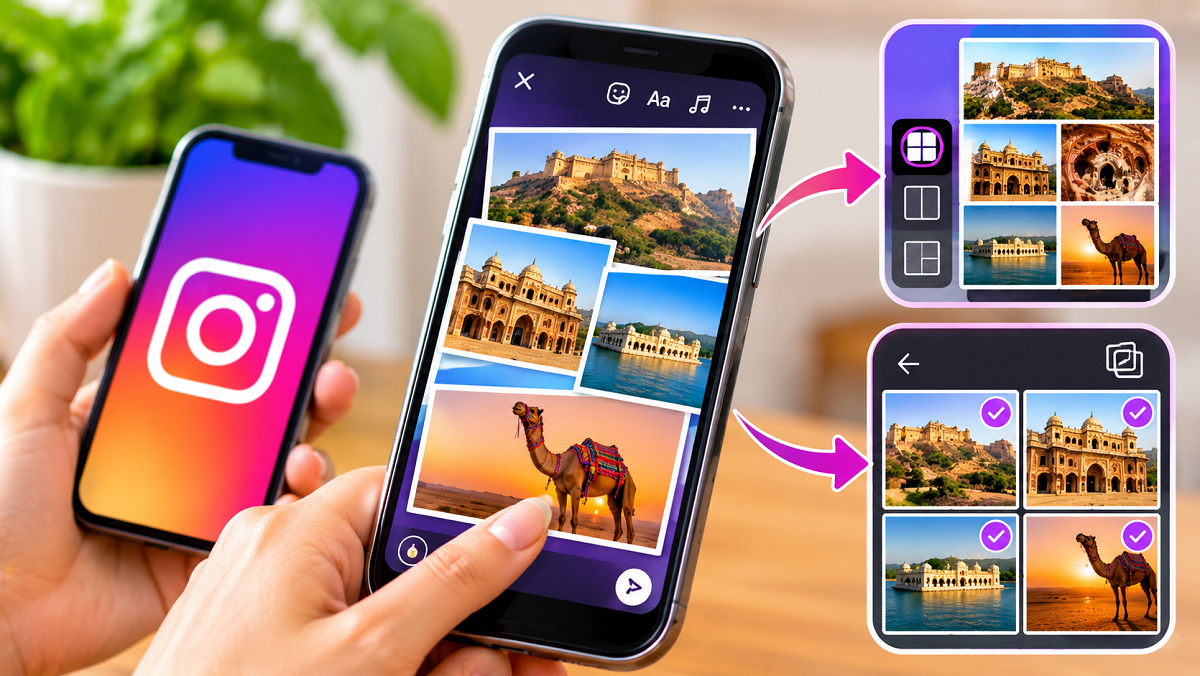
Here is a detailed guide to adding multiple photos to Instagram Stories using the Select Multiple, Layout and Photo Sticker features.
1. Upload Multiple Instagram Stories at the Same Time
Instagram's Select Multiple feature is particularly useful for people who want to share several photographs in a sequence without uploading them individually.
This option creates separate Story slides from the selected photographs, allowing followers to view them one after another.
How to Upload Multiple Photos Using Select Multiple
Follow these simple steps:
- Launch the Instagram application on your smartphone.
- Swipe right from the home feed or tap the Your Story option.
- Open your smartphone's photo gallery by tapping the gallery icon.
- Locate the Select Multiple option, usually represented by overlapping squares.
- Choose the photographs you wish to share.
- Arrange the pictures in your preferred sequence.
- Tap Next to proceed to the editing screen.
- Customise individual photographs with captions, music, filters or stickers.
- Tap Your Story to publish the selected images.
This method is ideal for sharing wedding photographs, travel diaries, event highlights and other memorable experiences.
However, remember that this feature publishes photographs as separate Story slides rather than combining them into a single frame.
2. Create a Photo Collage With Instagram Layout
If you want several photographs to appear together on the same Story screen, Instagram's Layout feature is a convenient option.
The built-in collage tool divides the Story screen into multiple sections, allowing users to place different photographs within a structured grid.
Depending on the available Layout options, users can select different grid arrangements containing two, three, four or six sections.
How to Make an Instagram Story Collage
- Open Instagram and navigate to the Story creation screen.
- Select the Layout icon from the available camera tools.
- Choose your preferred grid arrangement.
- Capture new photographs or select existing images from your gallery.
- Fill each section of the selected grid.
- Confirm the completed collage.
- Add music, captions, filters or decorative elements if required.
- Publish the collage by selecting Your Story.
The Layout feature is particularly useful for before-and-after comparisons, fashion collections, food photographs, birthday wishes and travel highlights.
It also helps users maintain a clean and organised visual presentation without requiring professional photo-editing skills.
3. Add Multiple Pictures Using Instagram Photo Stickers
Instagram's Photo Sticker feature provides greater creative flexibility than traditional grid-based collages.
Instead of placing photographs inside fixed sections, users can position additional pictures anywhere on the Story screen, resize them and customise their appearance.
This option is especially popular among content creators who prefer scrapbook-style designs and personalised visual arrangements.
Steps to Add Photo Stickers to Instagram Stories
- Open the Instagram Story creation interface.
- Select a photograph to use as your main background.
- Tap the sticker icon displayed on the editing screen.
- Find the Photo or gallery sticker option.
- Select another photograph from your smartphone.
- Use your fingers to resize, rotate or reposition the added image.
- Tap the photo sticker to explore available frame shapes.
- Repeat the process to add more photographs.
- Customise your Story and share it with your followers.
Depending on the application version, users may be able to choose different photo sticker shapes, including circular, rectangular and decorative frames.
This method allows you to experiment with overlapping photographs, colourful backgrounds and personalised designs.
Instagram Story Photo Features: Which Method Should You Choose?
| Instagram Feature | How It Works | Best Used For |
|---|---|---|
| Select Multiple | Publishes several individual Story slides | Travel diaries and event highlights |
| Layout | Combines photographs into a structured grid | Photo collages and comparisons |
| Photo Sticker | Adds movable photographs to a single frame | Creative and personalised Stories |
| Music Sticker | Adds an audio track to a Story | Celebrations and lifestyle content |
| Text and Decorative Stickers | Adds captions and visual elements | Personalised messages and announcements |
Each feature serves a different purpose. Users can choose the most suitable option depending on the number of photographs and their preferred presentation style.
Tips to Make Your Instagram Stories More Attractive
Creating engaging Instagram Stories involves more than simply uploading photographs. A well-organised visual presentation can make your content easier to view and more enjoyable for followers.
Consider using high-resolution photographs with similar colours or lighting conditions. Avoid overcrowding a single Story with too many images, as this can make individual photographs difficult to see.
Adding suitable background music, short captions and relevant stickers can enhance the overall presentation.
Instagram Stories generally work best in a vertical 9:16 format. Using photographs and designs that fit this aspect ratio can help minimise unnecessary cropping.
Users can also adjust their Story privacy settings or select the Close Friends option when sharing personal photographs with a limited audience.
What to Do If Instagram's Photo Sticker or Layout Feature Is Missing
Some users may not immediately find every Story editing feature on their smartphones. This can happen because of differences in application versions, operating systems, account settings or gradual feature rollouts.
If an option is unavailable, update Instagram through the Google Play Store or Apple App Store and restart the application.
You should also check whether Instagram has permission to access your smartphone's photographs and media files.
If a particular feature remains unavailable, you can use another built-in Story editing method or wait for the feature to become available on your account.
Create Professional-Looking Instagram Stories Without Extra Applications
Instagram's built-in photo-sharing and editing tools make it easier for users to transform ordinary photographs into visually appealing Stories.
The Select Multiple feature is suitable for publishing a sequence of pictures, while Layout helps create organised collages. Meanwhile, Photo Stickers provide additional freedom to design personalised and creative Story frames.
Whether you are sharing holiday memories, promoting a business, celebrating a special occasion or simply updating your followers, these features can help you create more engaging Instagram content without relying on third-party editing applications.
Note: Instagram's interface, feature availability and editing options may vary depending on the smartphone operating system, application version and account-specific updates.