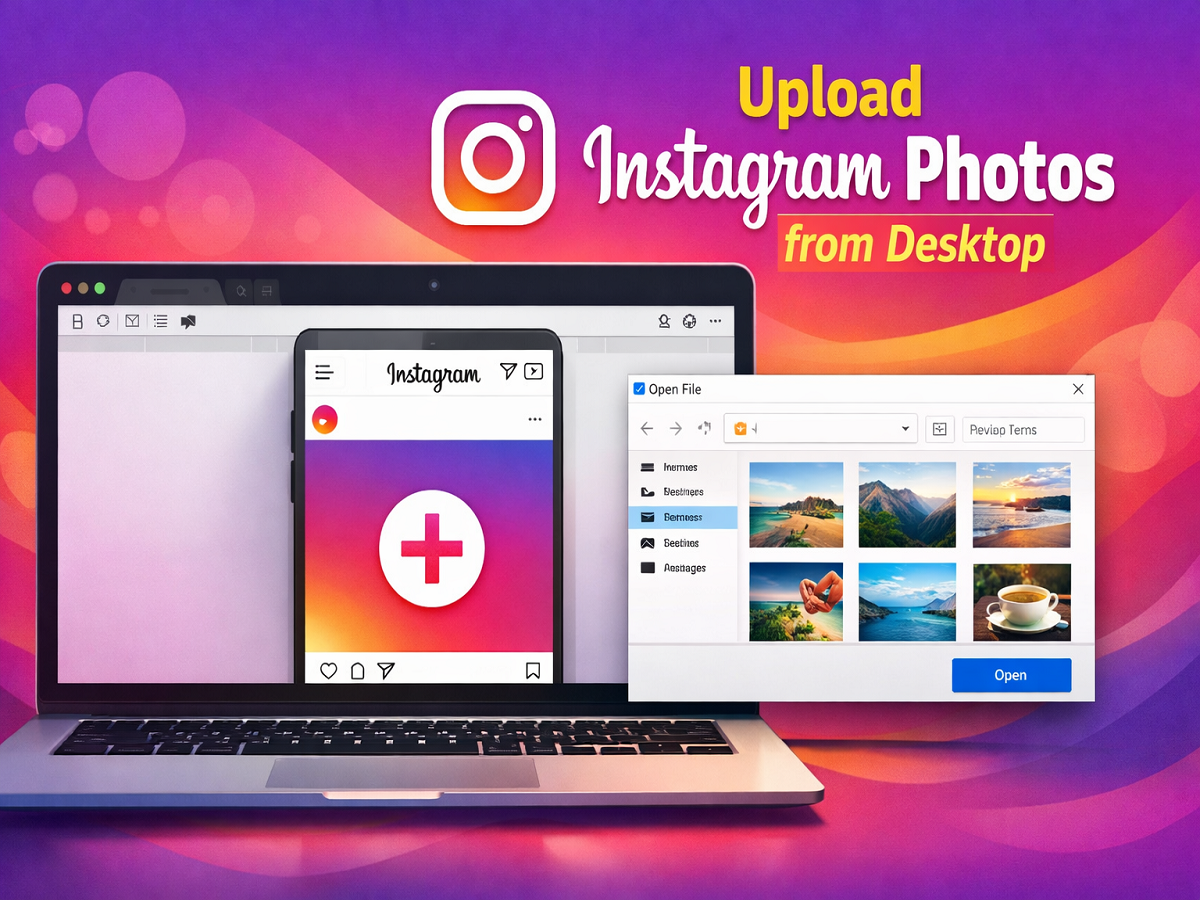
Uploading photos on Instagram is usually done through the mobile app. However, many users prefer working on a laptop or desktop and want to upload images directly from there. While Instagram’s web version has limited features, there’s a simple trick that lets you upload photos easily using your computer.
Here’s a complete guide to help you post on Instagram from your desktop in minutes.
Why Uploading from Desktop Is Useful
Using a laptop or desktop for Instagram uploads can be beneficial because:
- You can edit photos professionally before uploading
- It’s easier to manage high-quality images
- Useful for content creators, bloggers, and professionals
- Saves time when working with bulk media files
What You Need Before You Start
Before uploading photos from your desktop, make sure you have:
- Latest version of Google Chrome
- Active internet connection
- Instagram login credentials
👉 This method works best on Google Chrome.
Step-by-Step Guide to Upload Photos via Desktop
Follow these steps carefully:
Step 1: Open Instagram Website
Go to the official website of Instagram on your browser and log in to your account.
Step 2: Open Developer Tools
- Click on the three-dot menu (top-right corner in Chrome)
- Go to More Tools > Developer Tools
👉 Shortcut: Press Ctrl + Shift + C
Step 3: Enable Mobile View
- In Developer Tools, click on the Toggle Device Toolbar icon
- This switches your browser into mobile view
Step 4: Refresh the Page
Reload the Instagram page.
Now, you will see the ‘+’ (upload) button at the bottom—just like in the mobile app.
Step 5: Upload Your Photo
- Click on the ‘+’ icon
- Select the photo from your computer
- Add caption, location, and tags
Step 6: Share Your Post
Click on the Share button, and your photo will be uploaded successfully.
Things to Keep in Mind
- This trick works best on Chrome
- Some features like advanced editing may still be limited
- Always use updated browser versions
- Ensure image size and format are supported
Alternative Methods
If you don’t want to use developer tools, you can also:
- Use Instagram Creator Studio (for business accounts)
- Use third-party scheduling tools (with caution)
Final Thoughts
Uploading photos from a desktop on Instagram is no longer complicated. With a simple browser trick using Google Chrome, you can easily post your content without switching to your phone.
This method is especially helpful for professionals and creators who manage content on larger screens. Try it once, and you’ll find it just as convenient as using the mobile app.