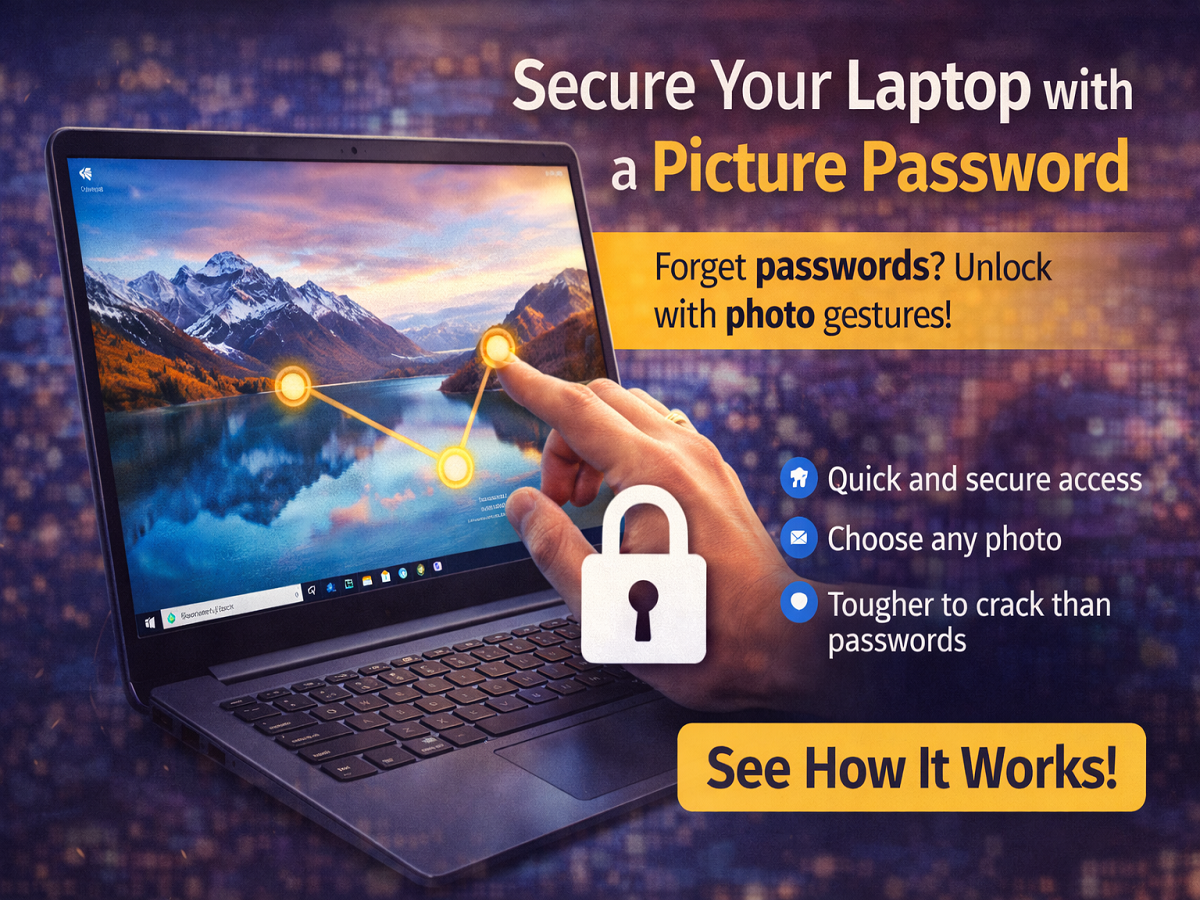
If you’re tired of typing traditional passwords or often forget them, there’s a smarter and more interactive way to secure your laptop—Picture Password. This lesser-known feature available on Windows laptops allows users to unlock their device using gestures on an image instead of typing a password.
It’s not only fun to use but also adds an extra layer of personalization and security to your device.
What Is a Picture Password?
A Picture Password lets you use an image of your choice and create a pattern on it using gestures. Instead of entering a text password, you simply:
- Tap
- Draw lines
- Make circles
on specific areas of the image to unlock your laptop.
This feature combines visual memory with touch gestures, making it easier to remember compared to traditional passwords.
Why Use a Picture Password?
Here are some key benefits of switching to a picture password:
- Easy to remember: Visual cues are easier than complex passwords
- Quick access: Unlock your laptop in seconds
- Personalized security: Choose your own image and gesture pattern
- Better protection: Harder for others to guess your exact gestures
It’s especially useful for users who want both convenience and security.
How to Set Up Picture Password on a Windows Laptop
Follow these simple steps to enable the feature:
Step 1: Open Settings
Press Windows + I on your keyboard to open Settings.
Step 2: Search for Picture Password
Use the search bar and type “Picture Password.”
Step 3: Select Setup Option
Click on Set up a picture password.
Step 4: Verify Your Current Password
Enter your existing laptop password to proceed.
Step 5: Choose an Image
Select a picture from your device that you want to use as your password background.
Step 6: Create Gesture Pattern
Now draw three gestures on the image. These can be:
- Three taps
- A combination of lines and circles
- Any pattern you can remember easily
Step 7: Confirm Your Gestures
Repeat the same gestures to confirm and complete the setup.
How to Unlock Using Picture Password
Once set, you don’t need to type your password anymore. Just:
- Open your laptop
- Perform the same three gestures on the image
- Your device will unlock instantly
Is Picture Password Safe?
While picture passwords are secure, they work best when:
- You choose unique gesture positions
- Avoid obvious patterns (like center or corners)
- Keep your image private
For added safety, you can also combine it with other features like PIN or biometric login.
Final Takeaway
Picture Password is a simple yet powerful feature that makes laptop security more engaging and user-friendly. If you’re looking for an alternative to traditional passwords, this feature is definitely worth trying.
It offers the perfect mix of convenience, creativity, and protection—making your daily laptop use smoother and more secure.
Disclaimer: Feature availability may vary depending on your Windows version and device settings.