NEWS
YouTube Kids Safety Settings 2026: 4 Ways to Block Inappropriate Videos and Protect Your Children
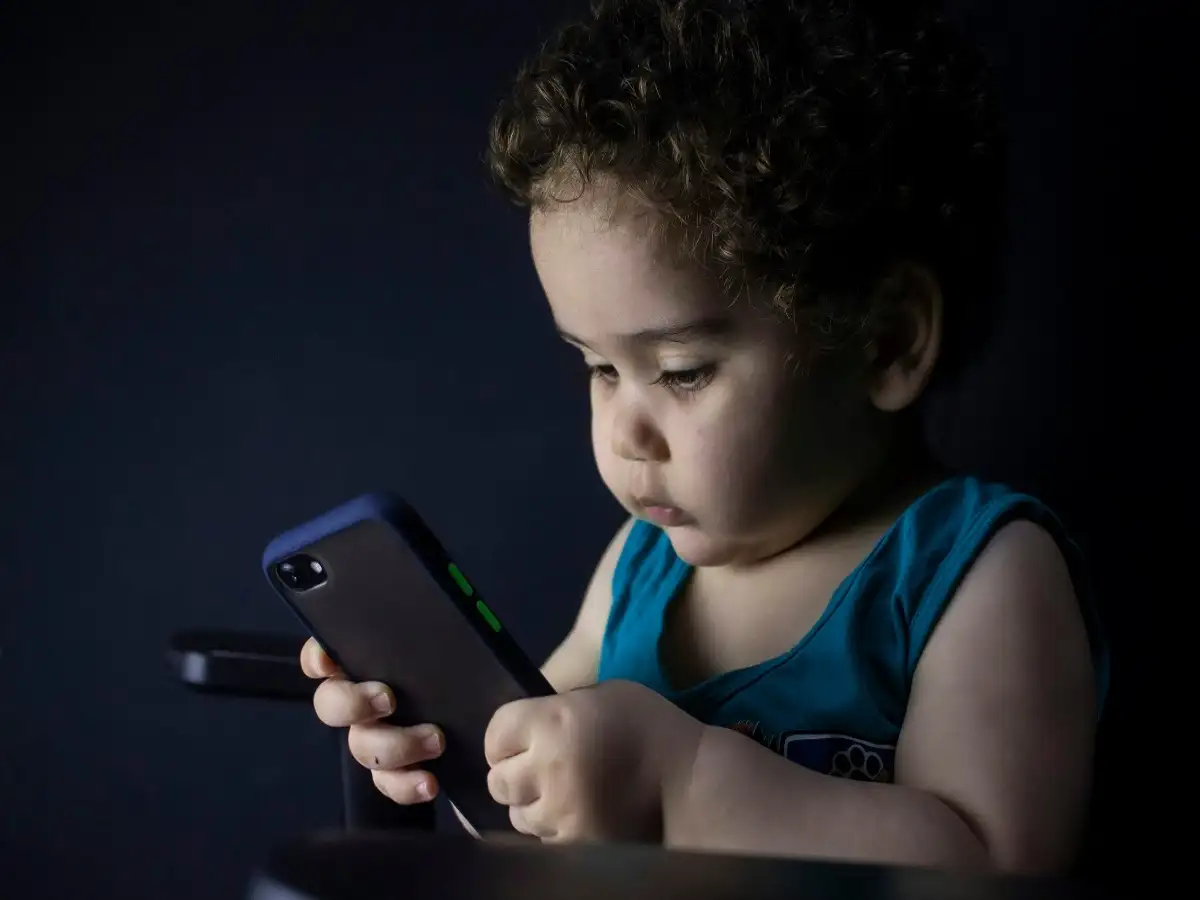
YouTube Kids Parental Control Tips 2026: Smartphones and online video platforms have become an important part of children's daily routines. From educational lessons and animated stories to cartoons and entertainment videos, millions of young viewers use YouTube to explore digital content.
However, not every video available online is suitable for children. Sometimes, videos containing frightening scenes, violent content, offensive language or misleading information may appear while children are browsing.
Such content can raise concerns among parents, particularly when younger children use smartphones without constant supervision.
Fortunately, YouTube offers several parental control features designed to help families manage what children watch. The YouTube Kids application provides additional options for selecting age-appropriate content, restricting searches and blocking unwanted videos.
Parents can use these settings to create a more controlled viewing environment while encouraging responsible digital habits.
Here are four important YouTube Kids safety settings that parents should know about.
1. Choose YouTube Kids Instead of Regular YouTube for Younger Children
One of the simplest ways to manage children's online video consumption is to use the dedicated YouTube Kids application.
Unlike the standard YouTube platform, YouTube Kids is designed specifically for younger audiences and provides additional parental supervision tools.
The application allows parents to create individual profiles and select content settings according to their child's age and developmental needs.
YouTube Kids offers three main age-based content categories:
Preschool – Ages 4 and Under
This category is intended for very young children and generally includes simple educational videos, nursery rhymes, cartoons and early learning content.
Younger – Ages 5 to 8
This setting offers a broader selection of videos, including educational programmes, songs, cartoons, creative activities and other content intended for primary-school-aged children.
Older – Ages 9 to 12
This category provides access to a wider range of videos suitable for older children, including gaming-related content, educational material, music and other entertainment.
Parents can choose the category that best matches their child's maturity and interests.
However, it is important to understand that automated filtering systems cannot guarantee that every inappropriate video will be excluded.
Regular parental involvement remains essential.
2. Disable the Search Feature to Limit Video Discovery
The Search feature allows children to look for videos by entering words or phrases.
Although this can help them discover educational content, it may also expose them to unfamiliar videos that parents have not reviewed.
YouTube Kids allows parents to disable Search for a child's profile.
When this option is turned off, children cannot independently search for videos through the application.
Instead, they can browse a more limited selection of content made available through the platform's recommendations and filtering systems.
How to turn off Search in YouTube Kids:
- Open the YouTube Kids application.
- Access the parental settings using the required verification method.
- Select your child's profile.
- Locate the Search setting.
- Turn off Search to restrict independent video searches.
The exact navigation may vary depending on the application version and device.
Disabling Search can reduce opportunities to discover unfamiliar content, although it does not guarantee that every recommended video will be suitable.
3. Use Approved Content Only for Greater Parental Control
For parents who want tighter control over what their children watch, YouTube Kids provides an option commonly known as Approved Content Only.
This feature allows parents to personally select the videos, channels or collections their children can access.
Once activated, the child can watch only the content approved by the parent.
This setting is particularly useful for younger children or families who prefer a carefully selected collection of educational and entertainment videos.
How to enable Approved Content Only:
- Launch YouTube Kids and open the parental settings.
- Choose the relevant child profile.
- Find the content settings section.
- Select the option to approve content yourself.
- Choose the videos, channels or collections you want your child to watch.
- Save the selected content.
After this setting is enabled, children cannot use the normal Search feature to explore additional videos.
Parents can review and update the approved content selection whenever necessary.
This approach provides greater control than relying entirely on automatic content recommendations.
4. Block and Report Videos That Are Not Suitable for Children
Even when age-based restrictions are enabled, parents may occasionally encounter videos they consider inappropriate.
YouTube Kids includes options for blocking individual videos or channels.
Blocking a video can help prevent it from appearing again within the relevant child profile.
Parents can also block channels if they believe the content is unsuitable.
Steps to block an unwanted video:
- Open YouTube Kids.
- Locate the video you want to restrict.
- Tap the three-dot menu or the available options button.
- Select the appropriate blocking option.
- Complete parental verification if requested.
The available blocking controls may differ depending on the device and application version.
Parents can also report videos that appear to violate YouTube's content policies.
Reporting helps bring potentially problematic material to the platform's attention for review.
However, reporting a video does not automatically guarantee that it will be removed.
Additional YouTube Kids Safety Features Parents Should Explore
Apart from the four main settings, YouTube Kids offers other tools that can help families manage children's viewing habits.
Set a Screen Time Limit
Parents can use the built-in timer to limit how long children watch videos during a particular session.
When the selected time expires, the application stops playback until a parent unlocks it.
This feature can help families establish boundaries around entertainment and screen use.
Review Viewing History
Checking previously watched videos can help parents understand the type of content their children are consuming.
It may also help identify channels or topics that require additional supervision.
Use Google Family Link
Google Family Link provides parental supervision tools for supported child accounts and Android devices.
Depending on the child's age, account type and device, parents may be able to manage screen time, application access and certain content settings.
Family Link can complement YouTube Kids controls, although available features vary by account and device.
Why Parental Supervision Is Still Important
Technology-based restrictions can reduce children's exposure to unwanted content, but they are not a complete substitute for parental guidance.
Children may encounter misleading information, frightening imagery or inappropriate behaviour even on platforms designed for younger audiences.
Parents can help by watching videos together, discussing online safety and encouraging children to report anything that makes them uncomfortable.
Creating a supportive environment where children feel comfortable asking questions is an important part of digital safety.
Families should also encourage a balanced routine that includes outdoor activities, reading, physical exercise, social interaction and adequate sleep.
Final Takeaway
YouTube Kids offers several useful parental control settings that can help families create a more age-appropriate online viewing experience.
Choosing the correct age category, disabling Search, enabling Approved Content Only and blocking unwanted videos can provide parents with greater control over the content available to their children.
Additional features such as screen time limits and viewing history can further support responsible digital habits.
Although no filtering system is completely reliable, combining these tools with regular parental involvement can help children enjoy online videos more safely.