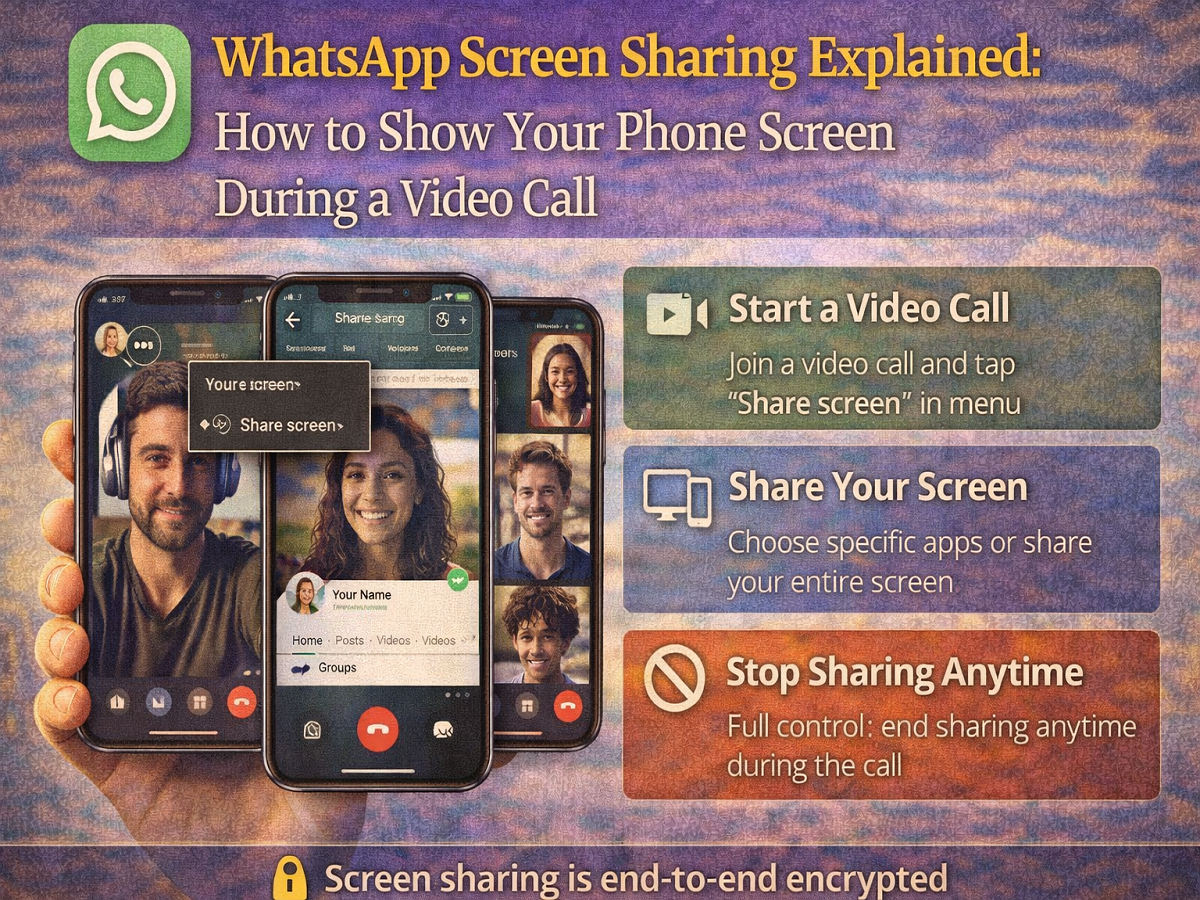
WhatsApp has introduced a useful screen sharing feature that allows users to share their phone screen during a video call. This feature can be helpful when you want to show documents, presentations, photos, apps, or guide someone through a process on your phone.
The screen sharing option works in real time and allows participants on the call to see exactly what is displayed on your screen. You also maintain full control and can stop sharing at any moment.
Here is a simple guide explaining how to share your screen on WhatsApp.
How to Share Your Screen During a WhatsApp Video Call
To use the screen sharing feature, you must already be in an active video call.
Follow these steps:
- Start or join a video call on WhatsApp.
- Tap the three-dot menu in the call controls.
- Select Share Screen.
- A prompt will appear indicating that WhatsApp will begin screen recording.
- Choose one of the following options:
- Share one app and select the specific app you want to display.
- Share entire screen to show everything on your device.
- Tap Share Screen to begin.
Once activated, other participants in the call will be able to see your shared content instantly.
How to Stop Screen Sharing
If you want to end the screen sharing session:
- Tap Stop Sharing on the screen.
Your screen will no longer be visible to other participants, and the video call will continue normally.
Important Things to Know About WhatsApp Screen Sharing
Before using the feature, keep these key points in mind:
1. Only Available in Video Calls
Screen sharing works only during video calls. It is not available during audio calls.
2. Shared Content Appears Above Call Participants
When sharing your screen, the shared content appears at the top, while the video feeds of other participants appear below.
3. Share Only With Trusted Contacts
If you share your screen with someone who is not saved in your contacts, WhatsApp may display a reminder advising you to share only with people you trust.
4. Sensitive Information May Be Visible
Everything on your screen—including usernames, passwords, or private messages—may be visible to the person you are sharing with.
Is WhatsApp Screen Sharing Secure?
Yes. WhatsApp states that screen sharing is protected with end-to-end encryption, meaning:
- Only participants on the call can see your screen
- The content is not recorded by WhatsApp
- No third party—including WhatsApp—can access the shared data
Tips for the Best Screen Sharing Experience
To ensure smooth performance:
- Update to the latest version of WhatsApp
- Use the latest operating system on your device
- Ensure all call participants are also using the latest app version
If someone in the call is using an outdated version, WhatsApp may prompt them to update before screen sharing starts.
The screen sharing feature on WhatsApp makes video calls more interactive and practical. Whether you want to explain something visually, present information, or help someone troubleshoot an issue on their device, this feature allows you to do it easily within the app.
With real-time sharing, encryption protection, and simple controls, WhatsApp screen sharing is becoming a useful tool for both personal and professional communication. 📱💬