NEWS
Turn Your Android Phone Into a Mini PC: Easy Ways to Use a Monitor, Keyboard, Mouse and Desktop Mode
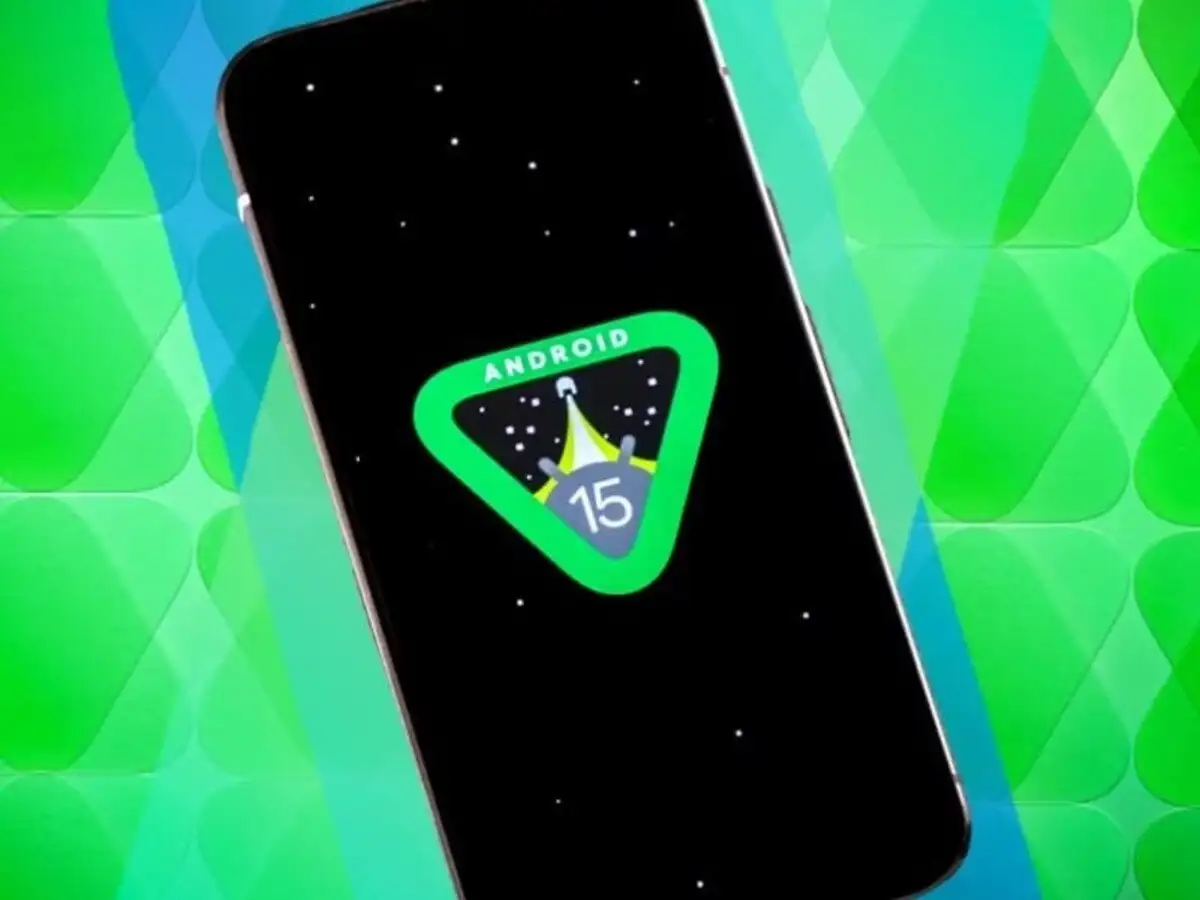
Modern smartphones have become powerful enough to handle many tasks that once required a laptop or desktop computer. Faster processors, large displays, 5G connectivity, improved multitasking and USB Type-C ports now allow users to turn certain Android phones into surprisingly capable productivity machines.
With the right accessories, a compatible smartphone can be connected to a monitor or television and paired with a keyboard and mouse. This setup can be useful for web browsing, writing emails, editing documents, attending video meetings, managing social media and working with cloud-based applications.
Some phones go even further by offering a dedicated desktop interface. Samsung DeX, for example, can provide a PC-like workspace on supported Galaxy devices when connected to an external display. Samsung says DeX allows compatible smartphones and tablets to work with monitors, TVs, keyboards and mice for a desktop-style experience.
Connect Your Smartphone to a Bigger Display
One of the easiest ways to make a phone feel more like a computer is to use a larger screen.
If your Android smartphone supports video output through its USB Type-C port, you may be able to connect it to a monitor or television using a USB-C to HDMI adapter, compatible cable or USB-C dock.
Once connected, the phone's display can appear on the larger screen. Depending on the device, this may simply mirror the smartphone interface or activate a more advanced desktop environment.
With a physical keyboard and mouse added to the setup, everyday tasks become much easier. Users can type documents, reply to emails, browse websites, participate in meetings and work with productivity applications without relying entirely on the touchscreen.
However, there is one important limitation: having a USB-C port does not automatically mean that a smartphone supports video output. Users should check the specifications of their exact phone model before purchasing an HDMI adapter or dock.
Desktop Mode Can Make the Experience More Like a PC
A dedicated desktop mode can significantly improve the experience because it is designed for larger screens.
One of the best-known examples is Samsung DeX. On supported Galaxy devices, DeX provides an interface closer to a traditional desktop environment rather than simply enlarging the normal phone screen.
Samsung says DeX can support multiple windows, keyboard and mouse input and connections to an external monitor or TV. Apps can be opened in separate windows, allowing users to switch between documents, browsers and other services more naturally.
For example, a user could keep a browser open in one window, write a document in another and monitor email at the same time.
This type of multitasking can make a compatible smartphone useful for basic office work when a laptop is unavailable.
Use a Bluetooth Keyboard and Mouse Without a Monitor
An external monitor is useful, but it is not essential for turning a smartphone into a more comfortable productivity device.
Users can pair a Bluetooth keyboard and mouse directly with the phone and continue working on the smartphone's own display.
Typing a lengthy email, report or document on a touchscreen can become tiring, particularly when the virtual keyboard occupies a large part of the display. A physical keyboard can make writing considerably faster and more comfortable.
A Bluetooth mouse can also help with selecting text, navigating websites and working with apps that support pointer input.
This basic setup can be useful for students, travellers, journalists and professionals who want to carry fewer devices.
A USB-C Hub Can Create a Complete Workstation
Users who want a more capable setup can consider connecting a compatible phone through a USB-C hub.
Depending on the hub and smartphone, a single accessory can provide several useful connections. These may include HDMI for a monitor, standard USB ports for a keyboard or mouse, Ethernet for wired internet and SD or microSD card slots.
A suitable hub can potentially allow a user to connect a monitor, keyboard, mouse, external storage and network connection simultaneously.
This turns the smartphone into the central device powering a compact workstation.
Compatibility remains important, however. The phone needs to support the required display and USB functions, while the hub must also support the relevant features.
Samsung DeX Offers Both Wired and Wireless Options
Compatible Samsung devices offer additional flexibility through DeX.
Samsung explains that users can connect supported devices to a monitor or TV using an HDMI adapter or compatible dock. Some supported configurations can also connect wirelessly to compatible displays.
On supported models, users can pair Bluetooth keyboards and mice and use the phone as part of a desktop-style workspace. Samsung's latest guidance also notes that newer compatible Galaxy devices can use wireless DeX with displays supporting technologies such as Miracast.
Exact DeX features vary by model, so users should check Samsung's compatibility information before assuming their phone supports every connection option.
What Can You Actually Do With a Phone-Based PC Setup?
For everyday productivity, a smartphone workstation can handle considerably more than many users might expect.
Web browsing and email are obvious examples, but users can also work with Google Docs, Microsoft 365 and other cloud-based tools. Video conferencing applications can be used for meetings, while social media managers can handle posts, messages and basic content operations directly from the phone.
Cloud storage services can make the experience more practical because documents and other files remain accessible without depending entirely on local phone storage.
Light photo editing, presentation viewing, spreadsheets and file management can also work well depending on the applications being used.
Can a Smartphone Completely Replace a Laptop?
For some users and some types of work, a phone may be enough. For others, it remains a useful backup rather than a full replacement.
A smartphone-based workstation is well suited to tasks such as web browsing, email, online meetings, basic document editing, cloud applications, social media management and light multitasking.
It is less suitable for workloads that depend on powerful desktop software or specialised hardware.
Professional video editing, complex programming environments, advanced 3D rendering, high-end game development and large engineering applications are generally better handled by a proper laptop or desktop computer.
Application compatibility is another consideration. Samsung itself notes that certain apps may not work fully in DeX or may behave differently from their desktop equivalents.
Check Compatibility Before Buying Accessories
The most important step before building a phone-based workstation is checking what your smartphone actually supports.
Look for information about USB-C video output, external display support, desktop mode and supported resolutions. If you plan to use a USB-C hub, confirm whether the phone supports the required display and peripheral functions.
Users with compatible Samsung Galaxy smartphones can check whether DeX is supported. Samsung's current support documentation lists DeX across selected Galaxy S, Note, Fold and Tab devices, although available features can differ depending on the model and software version.
Your Smartphone May Already Be Powerful Enough for Everyday Work
You do not necessarily need to buy a new computer for every basic productivity requirement.
A compatible smartphone, combined with a keyboard, mouse and external display, can provide a practical mini-PC setup for writing, browsing, meetings and everyday office work.
Users with supported desktop modes can get an even more computer-like experience, while those without one can still improve productivity by pairing Bluetooth accessories and using mobile versions of cloud-based applications.
The setup will not replace a powerful laptop for every professional workload, but for routine tasks, travel or an emergency workstation, your Android phone may already have much of the hardware you need.