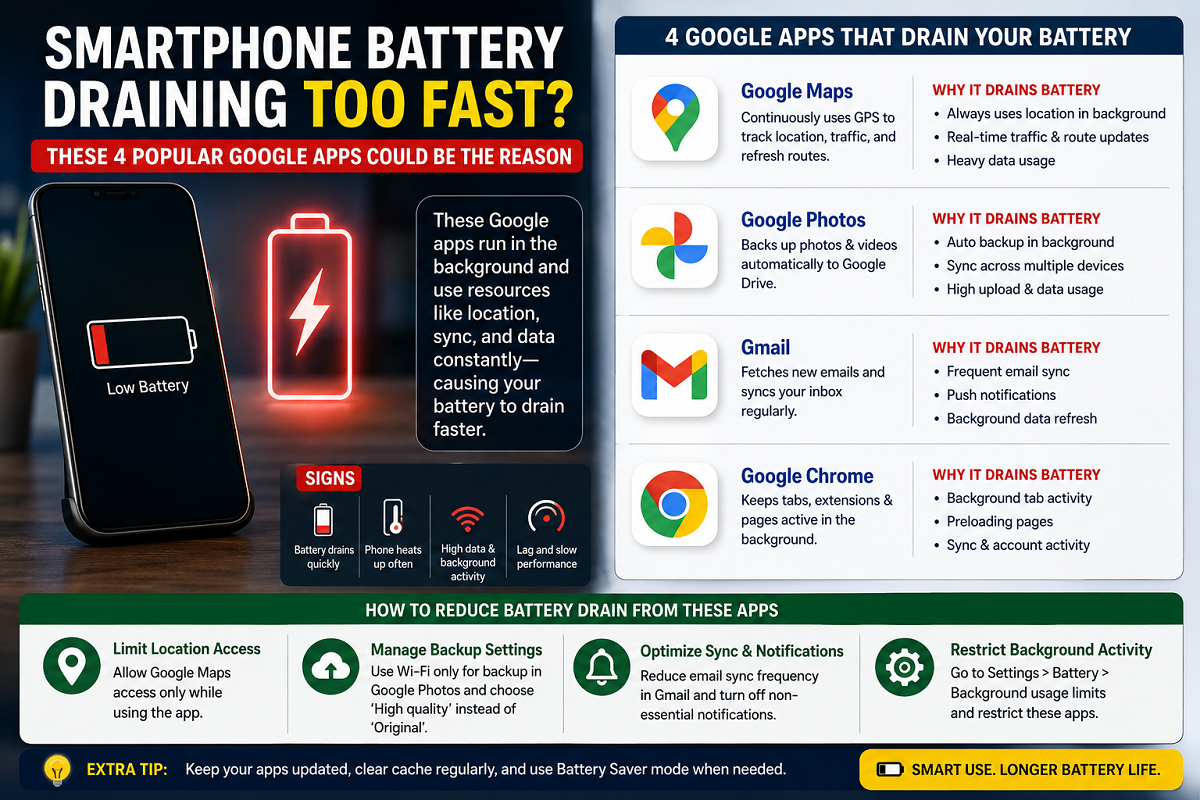
If your smartphone's battery seems to drain much faster than usual, the problem may not always be an aging battery. In many cases, certain apps running continuously in the background are responsible for increased power consumption. Among the biggest contributors are some of Google's most widely used applications, which perform frequent background tasks such as location tracking, cloud syncing, data refresh, and email synchronization.
Whether you use an Android device or an iPhone, apps like Google Maps, Google Photos, Google Chrome, and Gmail can consume a significant amount of battery if their background activities are left unrestricted. Understanding how these apps work and adjusting a few settings can help extend your phone's battery life.
Why Some Apps Drain More Battery
Many modern applications continue working even when they are not actively open on your screen. They regularly sync data, refresh content, access your location, upload files to the cloud, or check for new notifications.
These background operations use your phone's:
- Processor (CPU)
- RAM
- Internet connection
- GPS
- Battery power
The more frequently these activities occur, the faster your battery is likely to discharge.
1. Google Maps
Google Maps is one of the most useful navigation apps, but it can also be among the largest battery consumers.
The app frequently accesses your phone's GPS and location services to provide:
- Real-time navigation
- Live traffic updates
- Nearby places
- Route recalculations
- Location history (if enabled)
Even when you're not actively navigating, location-related services may continue running in the background if the required permissions remain enabled.
How to Reduce Battery Usage
- Allow location access only while using the app.
- Disable background location permissions if not required.
- Turn off Location History if you don't use it regularly.
2. Google Photos
Google Photos automatically backs up images and videos to cloud storage, making it convenient for preserving memories. However, continuous uploads can significantly increase battery consumption.
Whenever you capture a photo or record a video, the app may begin:
- Uploading files
- Syncing with cloud storage
- Processing images
- Organizing media in the background
Large photo libraries or high-resolution videos can make this process even more demanding.
How to Reduce Battery Usage
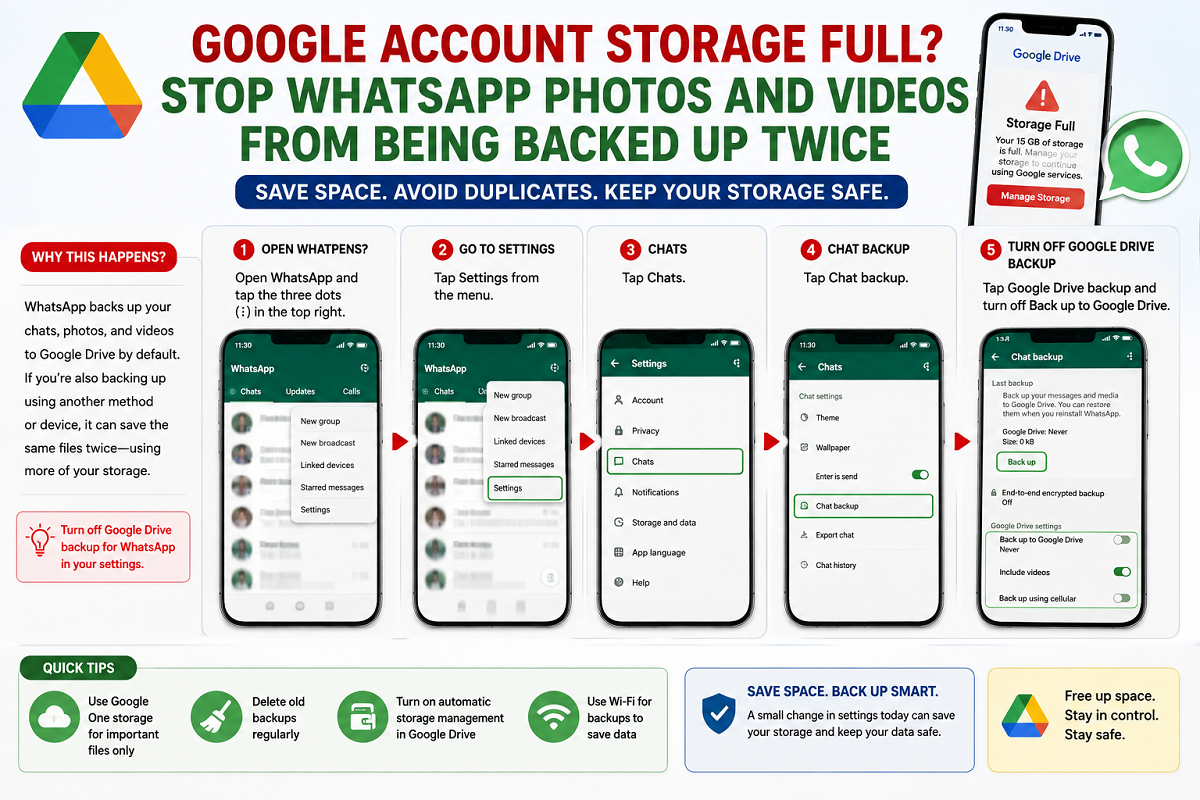
- Disable automatic backup when battery is low.
- Upload media only over Wi-Fi.
- Pause cloud backup temporarily during travel or extended outdoor use.
3. Google Chrome
Google Chrome is among the world's most popular web browsers, but it can also consume considerable battery, especially during heavy browsing sessions.
Battery usage increases when:
- Multiple tabs remain open
- Websites refresh in the background
- Graphic-intensive pages are loaded
- Videos or animations continue running
Open tabs also occupy memory, forcing the processor to perform additional background tasks.
How to Reduce Battery Usage
- Close tabs you no longer need.
- Avoid keeping dozens of pages open simultaneously.
- Restart the browser occasionally to free system resources.
4. Gmail
Gmail continuously checks for new emails so users receive notifications almost instantly.
To achieve this, the app regularly performs:
- Email synchronization
- Background data refresh
- Push notification updates
- Internet connectivity checks
Although each update consumes only a small amount of power, repeated synchronization throughout the day can affect battery life.
How to Reduce Battery Usage
- Increase email sync intervals if instant updates are not essential.
- Disable synchronization for accounts you rarely use.
- Restrict background activity when necessary.
Additional Tips to Improve Battery Life
Besides managing individual apps, a few simple habits can help extend overall battery performance:
- Enable Battery Saver mode when needed.
- Reduce screen brightness or enable adaptive brightness.
- Turn off Bluetooth, GPS, and Wi-Fi when not in use.
- Update apps regularly, as newer versions often include battery optimizations.
- Check the battery usage section in your phone's settings to identify apps consuming the most power.
Check Which Apps Are Using the Most Battery
Both Android and iPhone provide built-in battery usage reports.
You can review these reports to identify applications that are consuming excessive power and decide whether to:
- Limit background activity
- Revoke unnecessary permissions
- Reduce notification frequency
- Uninstall apps you no longer use
Monitoring battery usage regularly can help improve both performance and battery life.
Small Changes Can Make a Big Difference
Battery drain is not always caused by a faulty smartphone or an aging battery. Popular apps such as Google Maps, Google Photos, Google Chrome, and Gmail often continue running in the background to provide real-time services, cloud syncing, and instant updates.
By adjusting permissions, limiting background activity, and reviewing app settings, users can significantly reduce unnecessary battery consumption and enjoy longer battery life without compromising essential features.