NEWS
Slow Wi-Fi at Home? Try These 6 Easy Tricks to Boost Internet Speed and Fix Connection Problems
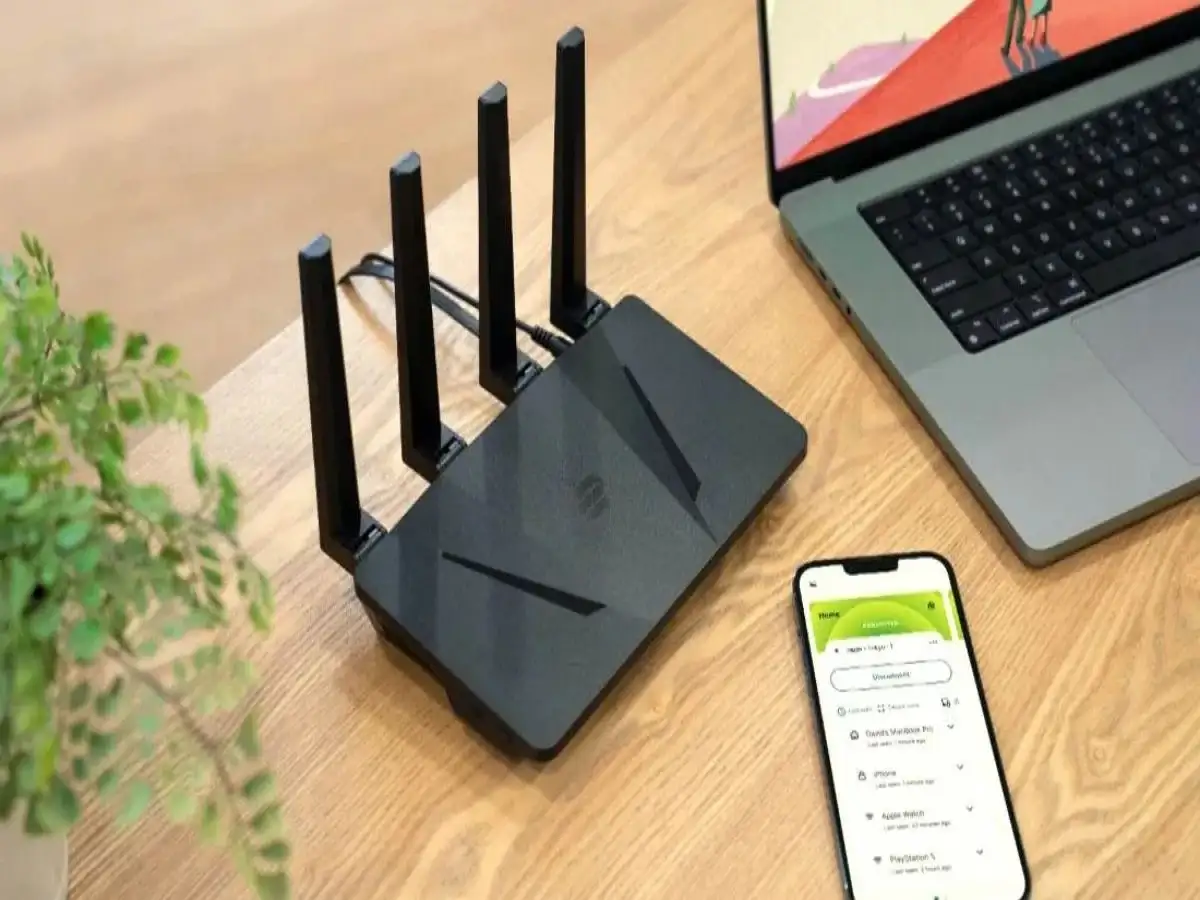
Wi-Fi Speed Tips 2026: A slow internet connection can make everyday activities frustrating, especially when you are working from home, attending video meetings, streaming movies, or playing online games. Even after subscribing to a high-speed broadband plan, many users experience poor Wi-Fi performance, frequent buffering, and unexpected connection drops.
However, slow Wi-Fi does not always mean that you need a more expensive internet plan or a new router. Sometimes, simple changes to your router settings, placement, and connected devices can make a noticeable difference.
If your home internet has become slower than usual, here are six practical methods that may help improve Wi-Fi speed, strengthen network coverage, and deliver a more reliable online experience.
1. Restart Your Wi-Fi Router to Fix Temporary Connection Issues
One of the quickest ways to troubleshoot a sluggish wireless connection is to restart your router.
Routers are designed to operate continuously, but occasional software glitches, memory-related issues, or temporary network errors can affect their performance.
Restarting the device may clear these minor problems and restore normal connectivity.
Follow these simple steps:
- Turn off your Wi-Fi router using its power button or switch.
- Leave the device switched off for approximately 30 seconds.
- Turn it back on and wait for the internet connection to become active.
- Reconnect your smartphone or laptop and check the speed.
Although restarting cannot solve every broadband issue, it is a useful first step when internet performance suddenly drops.
2. Change Your Router's Location for Stronger Wi-Fi Coverage
The position of your wireless router can significantly influence internet performance throughout your home.
Wi-Fi signals travel through the surrounding environment, and their strength can decrease when they encounter walls, furniture, and other obstacles.
Keeping the router inside a closed cabinet or at one end of the house may result in weaker signals in distant rooms.
For better coverage, place your router in a central, open location, preferably on an elevated shelf.
Avoid positioning it behind televisions, inside cupboards, or close to thick concrete walls.
A suitable location allows wireless signals to reach more areas of your home and may reduce connectivity problems.
If you live in a large house, a mesh Wi-Fi system or an additional access point may help eliminate areas with weak coverage.
3. Keep Your Router Away From Devices That Cause Signal Interference
Many household appliances and electronic gadgets can interfere with wireless signals, particularly those operating on the 2.4 GHz frequency band.
For example, microwave ovens, certain cordless phones, and nearby Bluetooth devices may affect Wi-Fi performance under some conditions.
Large metal objects, thick walls, and heavy furniture can also weaken wireless coverage.
To reduce possible interference, avoid placing your router directly beside such appliances or obstacles.
You can also check whether your router supports both 2.4 GHz and 5 GHz Wi-Fi bands.
The 5 GHz band often provides faster wireless performance over shorter distances, while 2.4 GHz generally offers better range and wall penetration.
Selecting the appropriate band based on your location and device compatibility can help improve your experience.
4. Disconnect Unused Devices From Your Wi-Fi Network
Most households now have several internet-connected gadgets, including smartphones, laptops, smart televisions, security cameras, and gaming consoles.
When multiple devices are downloading files, streaming videos, or performing updates simultaneously, they compete for the available internet bandwidth.
As a result, your connection may feel slower during busy periods.
Check the list of connected devices through your router's administration page or official mobile application.
Disconnect gadgets that are no longer needed, particularly those consuming significant bandwidth.
It is also important to identify unfamiliar devices connected to your network.
If you notice an unknown connection, change your Wi-Fi password and use WPA2-AES or WPA3 security, depending on what your router supports.
A secure network can prevent unauthorized users from consuming your internet bandwidth.
5. Update Router Firmware to Improve Stability and Security
Just like smartphones and computers, Wi-Fi routers run software that requires occasional updates.
This software, known as firmware, controls how the router operates and manages network connections.
Outdated firmware may contain technical bugs, security vulnerabilities, or compatibility issues that affect overall performance.
To check for available updates, open your router's administration settings or visit the manufacturer's official website.
Look for the firmware update section and follow the instructions provided for your specific router model.
Some modern routers support automatic updates, making the process easier.
Installing an appropriate firmware version may improve connection stability, resolve known problems, and strengthen network security.
However, firmware updates do not guarantee faster internet speeds, particularly when the actual problem is related to your broadband service.
6. Test Your Internet Speed and Check Your Broadband Plan
If your Wi-Fi continues to perform poorly after trying these methods, the issue may be related to your internet service provider rather than your wireless router.
Start by running an internet speed test using a reliable testing service.
For more accurate troubleshooting, connect a laptop or computer directly to your router using an Ethernet cable, if possible.
Compare the results with the download and upload speeds included in your broadband subscription.
Remember that advertised speeds may represent maximum or typical plan speeds, depending on the provider's terms, and actual performance can vary.
If your wired connection performs well but Wi-Fi remains slow, the problem is more likely to involve wireless coverage, interference, or router limitations.
However, if both wired and wireless connections consistently deliver unusually low speeds, contact your internet service provider for assistance.
Your provider may be able to identify network congestion, service interruptions, or connection-related faults.
Additional Tips to Keep Your Home Wi-Fi Running Smoothly
Apart from these six methods, a few everyday practices can help maintain reliable internet performance.
Keep your router well ventilated to prevent overheating. Avoid downloading large files on multiple devices during important video meetings.
If your router offers Quality of Service (QoS) settings, you may be able to prioritize certain applications or devices.
Users with older routers may also consider upgrading to a newer model if their existing equipment cannot support their broadband plan or household requirements.
Final Words
Slow Wi-Fi can interrupt work, entertainment, online classes, and other essential digital activities. Fortunately, many common wireless connectivity problems can be addressed without spending additional money.
Restarting your router, choosing a better location, reducing interference, managing connected devices, and installing firmware updates are useful troubleshooting steps.
If these changes do not improve performance, testing your broadband connection and contacting your service provider can help identify the underlying issue.
The key is to determine whether the slowdown comes from your Wi-Fi network, connected devices, or broadband connection before deciding to upgrade your equipment or internet plan.