QR codes have become an essential part of everyday digital life—from making instant payments to opening websites and accessing services. So, when your Apple iPhone suddenly stops scanning QR codes, it can be frustrating and inconvenient. The good news is that this issue is usually not serious and can be fixed quickly with a few simple adjustments.
If your iPhone camera is failing to recognize QR codes, here’s a complete, easy-to-follow guide to help you resolve the problem at home.
Why QR Code Scanning Matters Today
With the growing use of digital payments and contactless services, QR codes are everywhere. Whether you're scanning for UPI payments, restaurant menus, or login links, a non-functioning scanner can disrupt your routine. Fortunately, most issues are caused by minor settings or usage errors—not hardware damage.
1. Check Camera Settings First
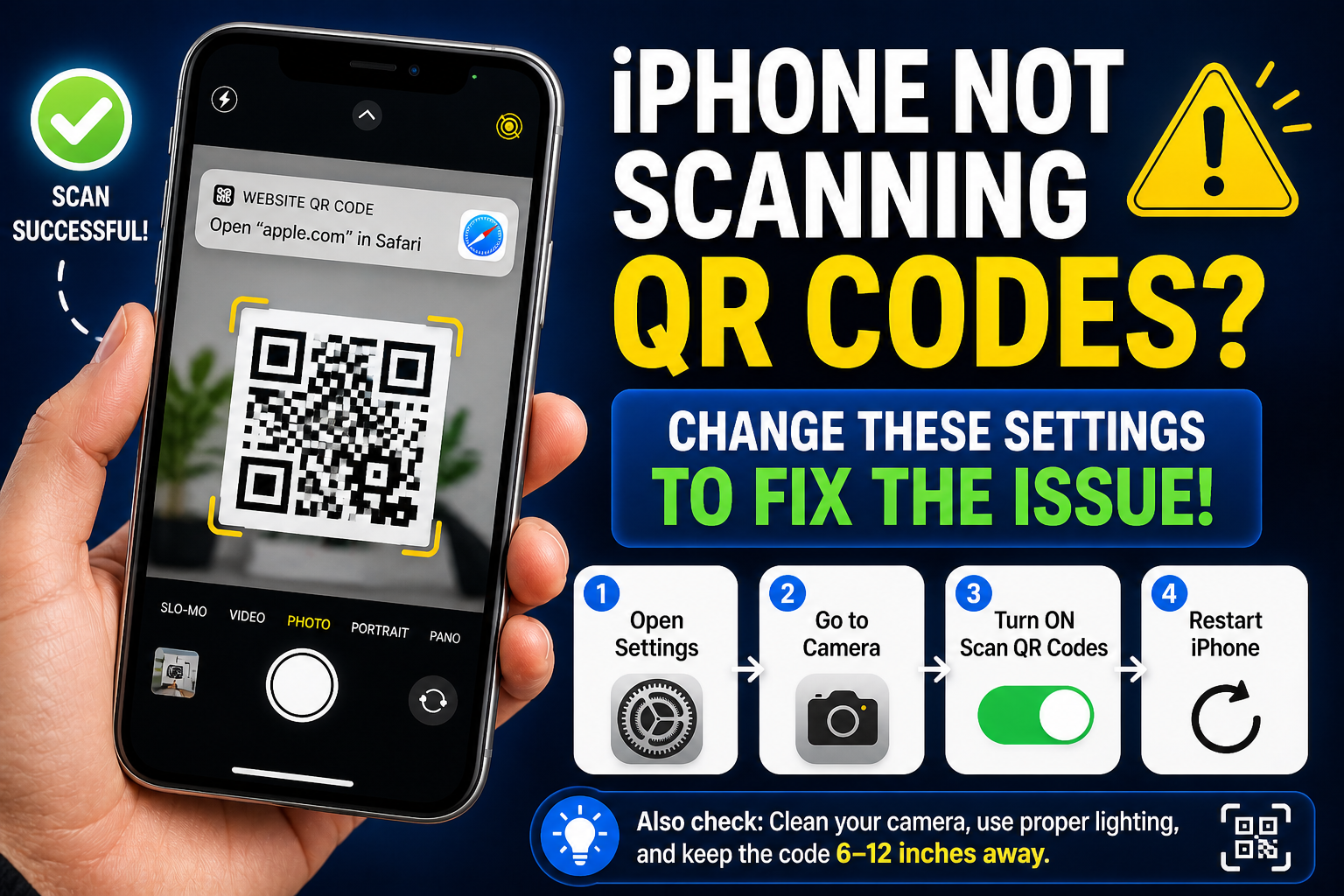
The most common reason behind QR scanning failure is a disabled setting. Apple includes a built-in QR scanner in the camera app, but it must be turned on manually in some cases.
How to Enable QR Code Scanning:
- Go to Settings
- Tap on Camera
- Turn ON the Scan QR Codes option
If this feature is turned off, your iPhone won’t detect QR codes at all. After enabling it, open the camera and point it at a QR code to test.
2. Restart Your iPhone
If the setting is already enabled but the issue persists, a quick restart can solve temporary glitches.
Restart Steps:
- Press Volume Up, then Volume Down
- Press and hold the Side Button
- Release when the Apple logo appears
This simple reset refreshes the system and often fixes minor software bugs affecting the camera.
3. Use the Right Camera Mode
Many users unknowingly try scanning QR codes using modes like Portrait, Wide Angle, or Telephoto. These modes may not support QR detection properly.
👉 Always use the standard Photo mode in the Camera app for scanning QR codes.
4. Enable Live Text for Better Detection
Apple’s Live Text feature helps recognize text and codes within images. Keeping this feature enabled can improve QR detection accuracy.
To Enable Live Text:
- Go to Settings
- Tap General
- Select Language & Region
- Turn ON Live Text
This adds an extra layer of recognition, especially useful for complex or low-quality QR codes.
5. Clean the Camera Lens
Sometimes, the issue isn’t software—it’s physical. A dirty or smudged lens can prevent the camera from focusing properly.
✔ Use a soft cloth to gently clean the camera lens
✔ Avoid scratches or harsh cleaning materials
A clear lens ensures better focus and faster QR recognition.
6. Maintain Proper Distance and Lighting
QR scanning depends heavily on camera positioning and lighting conditions.
Best Practices:
- Keep the phone 6 to 12 inches away from the QR code
- Ensure good lighting—avoid dark or overly bright glare
- Hold the phone steady for a few seconds
Too close or too far positioning can make it difficult for the camera to detect the code.
7. Add Code Scanner to Control Center
If the camera app still doesn’t work, try using the dedicated QR scanner available in the Control Center.
How to Add It:
- Go to Settings
- Tap Control Center
- Add Code Scanner
This feature provides a separate scanning tool that can sometimes work better than the default camera.
Final Thoughts
QR code scanning issues on an iPhone are usually easy to fix and rarely require professional repair. In most cases, enabling the right settings, restarting the device, or making small adjustments like cleaning the lens can solve the problem instantly.
If you continue facing issues even after trying all these steps, consider updating your iOS software or contacting Apple support.
Staying aware of these simple fixes can save you time and keep your digital tasks running smoothly.