NEWS
Google Account Security 2026: Check Where Your Gmail Is Logged In and Sign Out of Unknown Devices
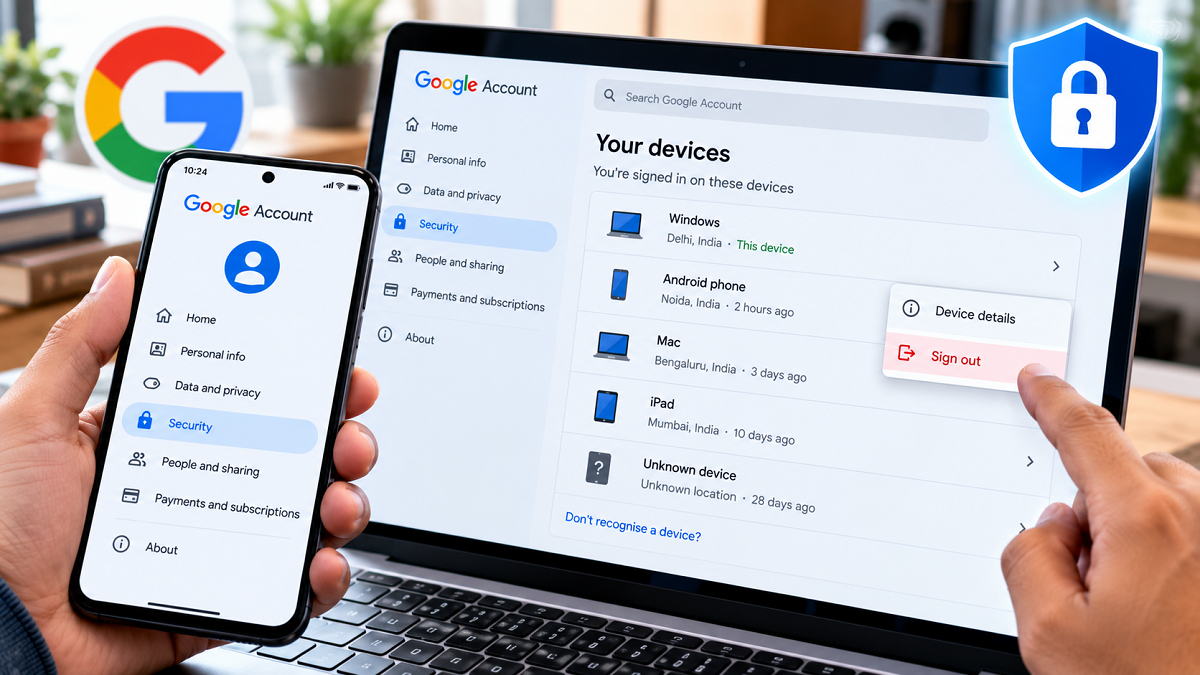
Google Account Security 2026: Your Google account is much more than an email address. It connects you to several important services, including Gmail, Google Photos, Google Drive, YouTube, Google Contacts and other applications that may contain personal or professional information.
Many people sign in to their Google accounts on multiple devices, including smartphones, laptops, office computers and tablets. Sometimes, users also access their accounts through a friend's phone or a shared computer and forget to sign out afterward.
This can create privacy and security risks, particularly if another person gains access to an active account session.
Fortunately, Google provides a built-in security feature that allows users to review devices associated with their accounts and remotely sign out of devices they no longer use.
Here is how to check your Google account's sign-in activity, remove unfamiliar devices and improve your account security.
How to Check Where Your Google Account Is Logged In
Google provides a device management feature within its account security settings.
This feature displays devices and sessions that are currently signed in or have recently accessed your account.
Depending on the available information, you may see details such as the device type, browser, approximate location and recent activity.
This makes it easier to identify an old smartphone, a shared computer or a device you do not recognise.
However, an unfamiliar device entry does not automatically mean your account has been hacked. Multiple browser sessions, device resets and approximate location information can sometimes make legitimate activity appear unusual.
Check Google Account Login Devices on an Android Phone
Android users can review their Google account's connected devices directly through their smartphone settings.
Follow these steps:
- Open the Settings application on your Android smartphone.
- Scroll down and select Google.
- Tap Manage your Google Account.
- Open the Security or Security & sign-in section.
- Find the Your devices option.
- Select Manage all devices.
- Review the devices and sessions displayed on the screen.
- Tap any device to examine the available sign-in information.
The exact menu names and arrangement may vary depending on your Android version and device manufacturer.
If you cannot locate these settings, you can access Google Account management through your mobile browser instead.
How to See Google Account Login Activity on a Laptop or Computer
You can also check account activity using a desktop computer or laptop.
The process is straightforward and does not require installing additional software.
Step-by-Step Process
- Open a trusted web browser.
- Visit Google's official account management website at myaccount.google.com.
- Sign in to the Google account you want to review.
- Select the Security section.
- Scroll to Your devices.
- Click Manage all devices.
- Review the list of devices and account sessions.
- Open any entry to examine its details.
Google may display smartphones, computers, tablets and browser sessions associated with your account.
If you regularly use Gmail on different devices, you may notice several entries.
Carefully check whether you recognise them before taking action.
How to Remotely Sign Out of Your Google Account
Suppose you signed in to Gmail on an office computer, sold your old smartphone or used a friend's laptop and forgot to log out.
You do not necessarily need physical access to that device to end its Google account session.
Google allows users to sign out remotely through account security settings.
Follow These Steps
- Open your Google Account settings.
- Navigate to Security.
- Find Your devices and select Manage all devices.
- Choose the device or session you want to remove.
- Review the displayed information.
- Select Sign out if the option is available.
- Confirm the action when prompted.
After signing out, the device should no longer have access through that particular Google account session without signing in again.
If the same device has multiple sessions listed, you may need to sign out of each relevant session.
Important: Remote sign-out does not necessarily erase files that were previously downloaded, screenshots that were saved or other information stored locally on that device.
What Should You Do If You Find an Unknown Device?
Finding an unfamiliar device can be concerning, especially if you do not remember signing in from that location.
However, it is important to examine the information carefully before concluding that someone has accessed your account without permission.
Start by checking the device type, recent activity and approximate location.
Remember that location information may be inaccurate because of mobile networks, internet service providers or VPN connections.
If you still cannot recognise the activity, take immediate security precautions.
You should sign out of the suspicious session, review recent security events and consider changing your Google account password.
If you suspect unauthorised access, changing your password is particularly important.
You should also verify that your recovery phone number and recovery email address have not been changed without your knowledge.
Does Signing Out of a Device Delete Your Google Account?
No. Signing out of a device does not delete your Google account.
Your Gmail messages, Google Photos, contacts and other cloud-based information generally remain associated with your account.
The sign-out action is intended to end access from the selected session.
You can continue using your Google account on other devices where you remain signed in.
However, some applications and services may require you to sign in again after account security changes.
Can Someone Still Access Your Data After You Sign Out?
Remote sign-out is an important security measure, but it is not a complete solution in every situation.
For example, if someone previously downloaded a document from Google Drive or saved a photograph from your account, signing out may not remove that locally stored copy.
Similarly, information already copied or shared may remain accessible outside your Google account.
This is why users should avoid accessing sensitive personal information on public or untrusted computers whenever possible.
If using a shared device is unavoidable, sign out after completing your work and avoid saving passwords or downloading confidential files.
Important Google Account Security Settings You Should Enable
Reviewing connected devices is only one part of keeping your account secure.
Google also provides several other security features that can help protect personal information.
| Security Feature | Why It Matters |
|---|---|
| 2-Step Verification | Adds an additional verification step during sign-in |
| Passkeys | Can provide a more phishing-resistant sign-in method |
| Security Checkup | Helps identify account security issues |
| Recovery Phone Number | Assists with account recovery |
| Recovery Email | Provides another way to recover access |
| Device Management | Allows you to review and sign out of account sessions |
Using a strong, unique password is also essential.
Avoid reusing your Google password on other websites, particularly services with weaker security practices.
Never share verification codes, passwords or recovery information with unknown callers or websites.
How Often Should You Check Your Google Account Devices?
There is no universal requirement to review your connected devices at a fixed interval.
However, checking periodically is a useful security habit.
It is especially important after using a shared computer, replacing a smartphone, selling an old device or noticing unexpected account activity.
You should also review your account security settings if Google sends a genuine notification about an unfamiliar sign-in attempt.
Instead of following suspicious links in messages, open your Google account settings directly through the official website or app.
Final Words
Your Google account may contain years of personal emails, photographs, documents and other valuable information. Leaving it signed in on an old or shared device can expose that information to unnecessary risks.
Google's device management feature makes it relatively simple to see where your account is signed in and remotely end sessions you no longer need.
To check your connected devices, open Google Account → Security → Your devices → Manage all devices.
If you discover an unfamiliar session, review its details, sign out when appropriate and strengthen your account security.
A quick check of your connected devices can help you maintain better control over your Gmail and other Google services without needing to access every device physically.