The Government of India has introduced several digital tools to make Aadhaar-related services more accessible and convenient for citizens. One of the most useful digital platforms is the mAadhaar app, developed by the Unique Identification Authority of India.
The mAadhaar app allows users to carry their Aadhaar card digitally on their smartphones and access a wide range of Aadhaar services anytime and anywhere. With the app, users can view their Aadhaar details, share eKYC information, and use their Aadhaar as identity proof at places like airports, hotels, and railway stations.
The app offers more than 35 Aadhaar-related services, making it a convenient digital solution for managing Aadhaar information. If you want to use these services, the first step is to create your Aadhaar profile on the mAadhaar app.
Below is a detailed guide explaining how to create and access your Aadhaar profile using the mAadhaar app.
What Is the mAadhaar App?
The mAadhaar app is the official Aadhaar mobile application launched by UIDAI. It enables Aadhaar holders to store their Aadhaar details digitally and access several government services through their smartphones.
With the app, users can:
- Carry a digital version of their Aadhaar card
- Share secure eKYC information
- Verify Aadhaar details
- Locate Aadhaar enrolment centres
- Scan QR codes for Aadhaar verification
- Order Aadhaar reprints
This makes the mAadhaar app a convenient alternative to carrying a physical Aadhaar card.
Important Things to Know Before Creating a Profile
Before setting up your Aadhaar profile on the app, keep the following points in mind:
- The app is available for both Android and iOS devices.
- You must create a 4-digit PIN to secure your profile.
- Your Aadhaar number will be required during registration.
- An OTP will be sent to your registered mobile number for verification.
It is also important to note that the app does not allow users to update demographic details such as name, date of birth, or mobile number.
Step-by-Step Guide to Create Your Aadhaar Profile on the mAadhaar App
Follow these steps to set up your Aadhaar profile in the app.
Step 1: Download the mAadhaar App
Install the mAadhaar app from the Google Play Store or Apple App Store on your smartphone.
Step 2: Open the App
After installation, launch the app on your device.
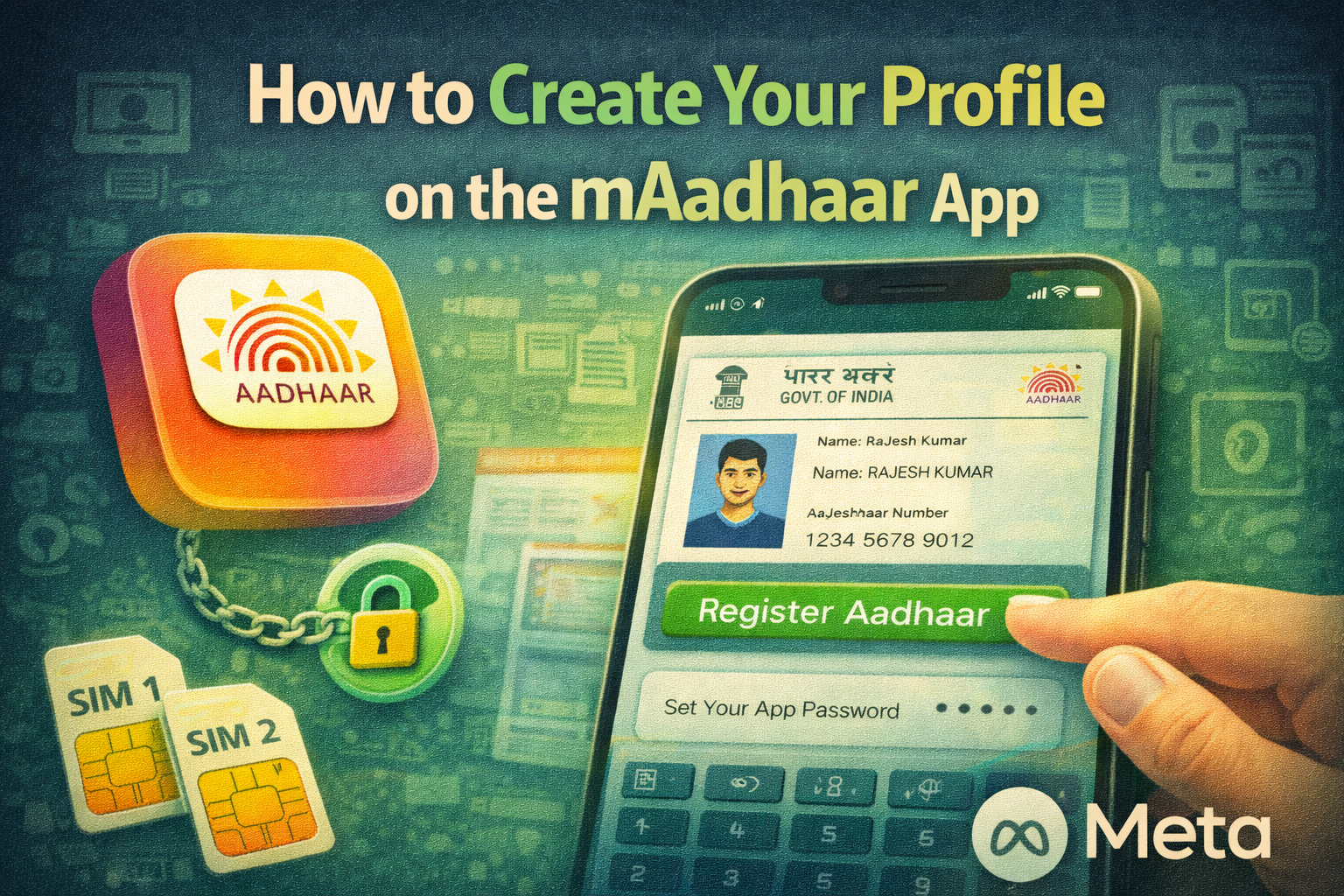
Step 3: Tap “Register Aadhaar”
On the main dashboard, tap the “Register Aadhaar” option displayed at the top.
Step 4: Create a 4-Digit PIN
You will be asked to create a secure 4-digit PIN or password.
Make sure you remember this PIN because it will be required whenever you access your Aadhaar profile.
Step 5: Enter Aadhaar Details
Enter your 12-digit Aadhaar number and the captcha code displayed on the screen.
Step 6: Verify with OTP
An OTP (One-Time Password) will be sent to your registered mobile number.
Enter the OTP to verify your identity.
Step 7: Complete Registration
Once the verification is successful, your Aadhaar profile will be created, and your registered name will appear on the screen.
How to Access Your Aadhaar Profile in the App
After successfully creating your profile, you can easily access your Aadhaar details through the app.
Follow these steps:
- Open the mAadhaar app.
- Tap the “My Aadhaar” option at the bottom of the screen.
- Enter the 4-digit PIN you created earlier.
Once logged in, the Aadhaar dashboard will appear, displaying your Aadhaar information.
Viewing Your Aadhaar Card in the App
To view your digital Aadhaar card:
- Tap on the profile summary at the top of the screen.
- Swipe left to see the front side of your Aadhaar card.
- Swipe again to view the back side of the card.
You can also access additional profiles if more than one Aadhaar profile is registered on the device.
Using mAadhaar Without a Registered Mobile Number
A registered mobile number linked to Aadhaar is not mandatory to install or use the mAadhaar app. However, users without a registered mobile number may have limited access to certain services, such as:
- Ordering Aadhaar reprints
- Verifying Aadhaar details
- Scanning QR codes
- Locating enrolment centres
To use all features fully, it is recommended to link your mobile number with your Aadhaar card.
The mAadhaar app is a powerful digital tool that makes Aadhaar services more accessible and convenient. By creating your Aadhaar profile on the app, you can store your Aadhaar digitally, access multiple services, and verify your identity quickly when needed.
With just a few simple steps, you can register your Aadhaar profile and start using the app for a wide range of government and verification services directly from your smartphone.