NEWS
Smartphone Addiction Tips 2026: Change These 5 Phone Settings to Reduce Screen Time and Improve Focus
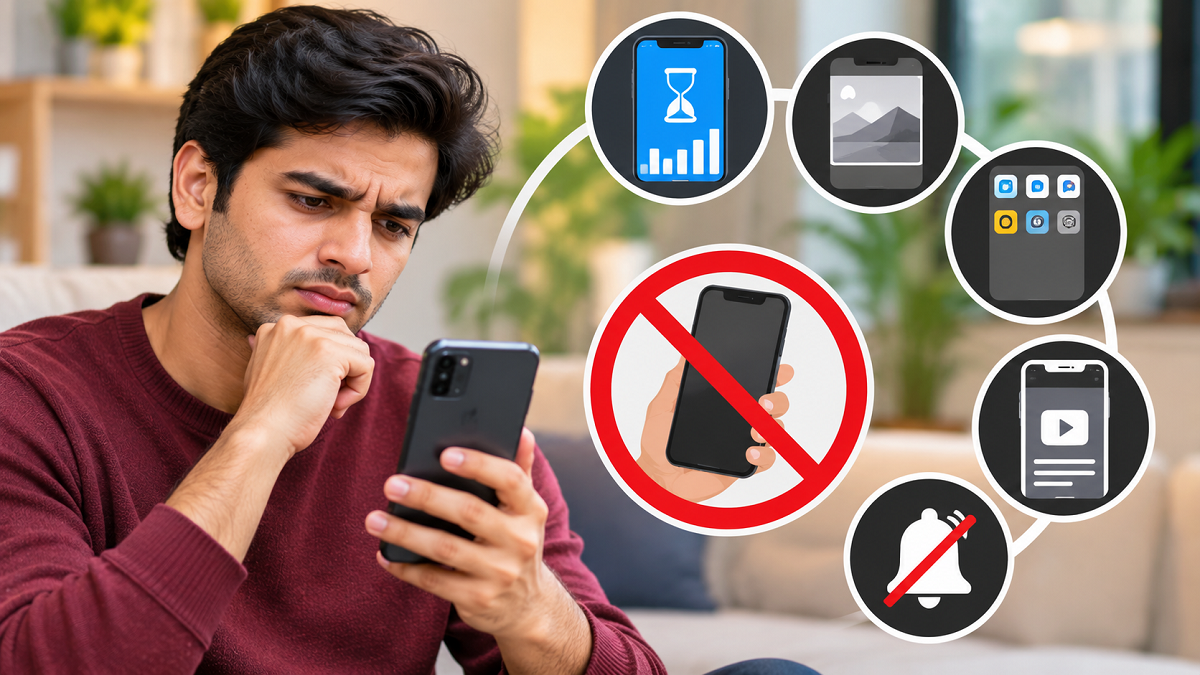
Smartphone Tips 2026: Smartphones have become an essential part of modern life, helping people manage everything from online banking and office assignments to education, communication, and entertainment. However, spending excessive time scrolling through social media, watching short videos, or repeatedly checking notifications can interfere with sleep, concentration, productivity, and daily routines.
Many smartphone users open their devices for a specific purpose but end up spending considerably more time than intended. Social media applications, continuous notifications, and personalised content recommendations can make it difficult to stop scrolling.
Fortunately, Android and iPhone users have access to built-in features that can help them monitor screen time, limit distracting applications, and develop more intentional digital habits.
If you frequently find yourself checking your phone without any particular reason, these five practical changes may help you regain control of your screen time.
1. Set Daily App Limits to Control Social Media Usage
One of the simplest ways to reduce unnecessary smartphone use is to establish daily time limits for frequently opened applications.
Platforms such as Instagram, Facebook, YouTube, and other entertainment apps can occupy a significant portion of a person's day without them realising it.
Android smartphones include a feature called Digital Wellbeing, which provides information about how much time users spend on individual applications.
How to Set App Timers on Android
- Open the Settings application.
- Select Digital Wellbeing & Parental Controls.
- Open the dashboard or app activity section.
- Choose an application that consumes too much time.
- Select App Timer and set a daily usage limit.
Once the allocated time is reached, Android can pause access to that application for the remainder of the day, although users may be able to change or remove the restriction.
iPhone users can access similar controls through Settings > Screen Time > App Limits.
These tools are particularly useful for people who want to reduce recreational screen time without completely uninstalling their favourite applications.
2. Turn Your Smartphone Screen Black and White
Colourful application icons, photographs, videos, and animations can make smartphone screens visually engaging.
Switching the display to grayscale removes most of these colours, creating a black-and-white appearance.
For some users, this may reduce the visual appeal of entertainment applications and discourage unnecessary browsing.
However, grayscale is not a guaranteed solution to excessive smartphone use. Its effectiveness varies according to individual habits.
How to Enable Grayscale on Android
On many Android devices, users can open Settings > Digital Wellbeing > Bedtime Mode and look for screen customisation options that include grayscale.
Some smartphones also provide colour correction settings under the Accessibility menu.
The exact location depends on the manufacturer and Android version.
How to Enable Grayscale on iPhone
Open Settings > Accessibility > Display & Text Size > Colour Filters.
Enable Colour Filters and select Grayscale.
Users can switch back to the normal colour display whenever necessary.
This setting may be especially helpful during study sessions, office hours, or before bedtime.
3. Remove Distracting Applications From Your Home Screen
The arrangement of applications on a smartphone can influence how frequently they are opened.
When entertainment and social media apps are prominently displayed on the home screen, users may launch them automatically, even when they originally picked up the phone for another task.
A simpler home screen can help reduce these visual reminders.
Consider keeping only essential applications such as calling, messaging, banking, calendars, navigation, and work-related tools on the main screen.
Move social media and gaming applications to secondary screens or remove their shortcuts from the home screen.
This does not require uninstalling the applications.
Android users can generally remove a shortcut by long-pressing an app icon and selecting the appropriate removal option.
On iPhones, users can long-press an application and choose to remove it from the Home Screen while keeping it in the App Library.
The additional effort required to locate distracting applications may encourage more deliberate phone use.
4. Replace Endless Short-Video Scrolling With Purposeful Content
Short-form video platforms are designed to present a continuous stream of content.
Features such as automatic playback and personalised recommendations can encourage users to watch one video after another.
For people trying to reduce excessive screen time, replacing endless scrolling with activities that have a clear beginning and ending may be helpful.
For example, users can choose to read an e-book, listen to an educational podcast, watch a documentary, or complete an online learning session.
Long-form content is not automatically healthier than short videos, and spending several hours watching documentaries can still contribute to excessive screen time.
The main objective should be intentional consumption rather than simply replacing one type of digital entertainment with another.
Offline activities such as walking, exercising, reading printed books, or spending time with family can also provide useful alternatives.
5. Disable Unnecessary Notifications to Reduce Distractions
Frequent notifications are among the most common reasons people repeatedly unlock their smartphones.
Social media updates, promotional messages, shopping offers, and entertainment recommendations can interrupt work or study sessions.
Even when a notification is not important, it may encourage users to open an application and continue browsing.
Disabling non-essential alerts can reduce these interruptions.
How to Manage Notifications on Android
- Open Settings.
- Select Notifications or Apps, depending on your device.
- Choose the application whose alerts you want to manage.
- Open its notification settings.
- Disable unnecessary notifications or selected notification categories.
How to Manage Notifications on iPhone
Go to Settings > Notifications, select an application, and adjust its notification permissions.
Users should keep important alerts enabled, particularly those related to calls, security, banking transactions, and essential communication.
The goal is to reduce unnecessary interruptions without missing critical information.
Additional Smartphone Features That Can Help Improve Digital Habits
Apart from these five changes, both Android and iOS offer additional tools for managing attention.
Android's Focus Mode can temporarily pause selected distracting applications during work or study periods.
Similarly, Apple's Focus feature allows users to control which people and applications can send notifications during specific activities.
Do Not Disturb can also be useful when uninterrupted concentration or rest is required.
Some users may benefit from establishing phone-free periods during meals, family gatherings, or before going to sleep.
These measures can help create clearer boundaries between digital activities and everyday responsibilities.
How Much Screen Time Is Too Much?
There is no single daily smartphone usage limit that is appropriate for every adult.
Someone who uses a phone for professional communication, education, or accessibility purposes may spend more time on the device than someone who uses it primarily for entertainment.
The more important question is whether smartphone use is interfering with essential activities.
Warning signs may include regularly delaying sleep because of scrolling, difficulty concentrating on important tasks, repeatedly checking the phone despite intending not to, or neglecting offline responsibilities.
If phone use feels difficult to control and causes significant distress or disruption, professional guidance may be helpful.
Final Takeaway
Reducing unnecessary smartphone use does not require completely giving up digital technology.
Simple adjustments such as setting app timers, enabling grayscale, organising the home screen, choosing content more deliberately, and disabling unnecessary notifications can help people become more aware of their screen habits.
The key is to use smartphones with a clear purpose rather than allowing constant alerts and endless scrolling to control daily routines.
By combining built-in digital wellbeing tools with consistent personal habits, users may be able to improve concentration, protect their leisure time, and develop a healthier relationship with technology.
Note: Menu names and feature availability may vary depending on the smartphone manufacturer, operating system version, and device model.