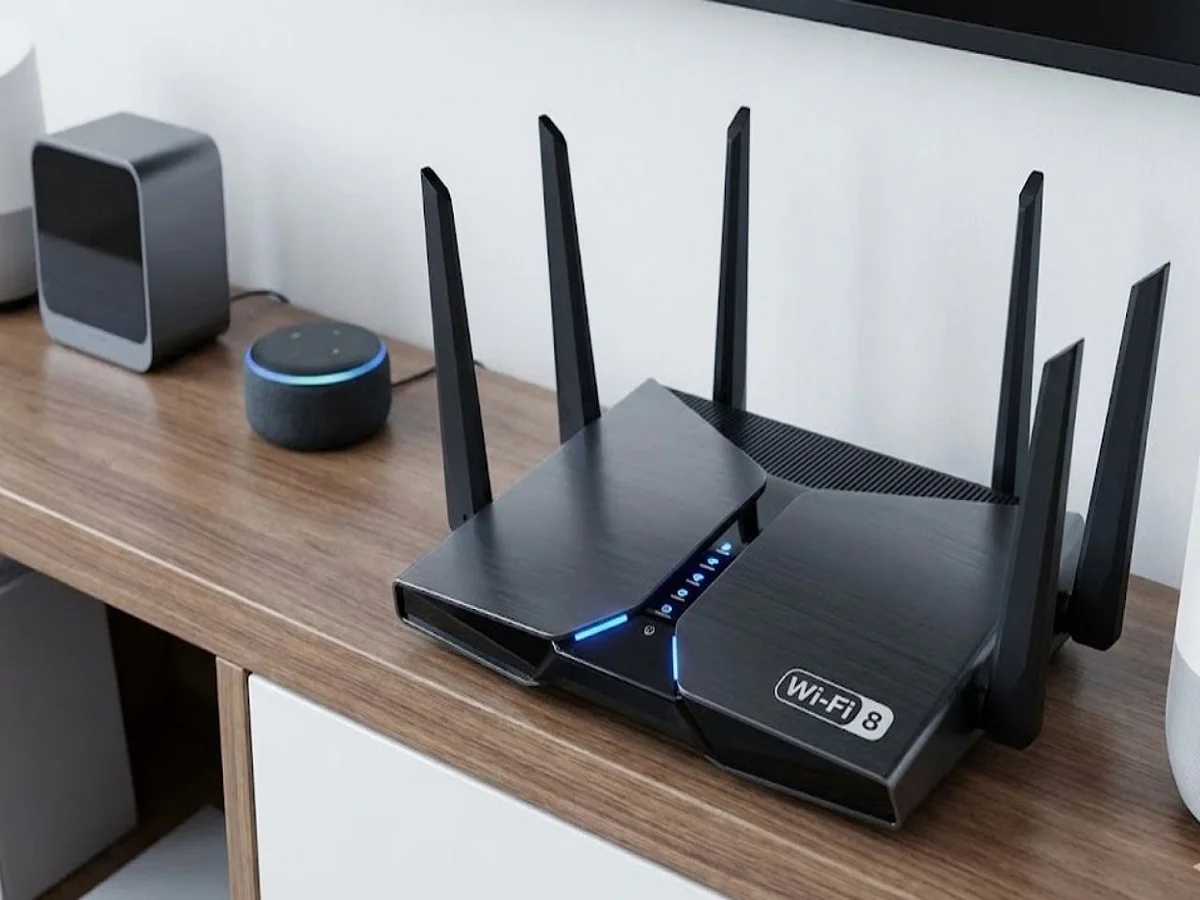
In today’s digital world, a stable internet connection has become essential for almost everything — from online classes and office meetings to OTT streaming, gaming, smart TVs, and connected home devices.
However, many users face a frustrating problem: despite paying for expensive broadband plans, their Wi-Fi suddenly becomes slow. Videos start buffering, video calls lag, games disconnect, and browsing speeds drop significantly.
Experts say the issue is often not the internet plan itself, but hidden router settings, poor placement, or unauthorized usage.
Here are the most important reasons your Wi-Fi may be slowing down and the settings you should change immediately.
Someone May Be Using Your Wi-Fi Secretly
One of the biggest reasons behind slow internet speed is unauthorized access to your Wi-Fi network.
If too many unknown devices are connected to your router, your available bandwidth gets divided, causing:
- Slow downloads
- Buffering videos
- Lag during gaming
- Poor video call quality
- Faster data usage
Cybersecurity experts say many users never realize strangers may already be connected to their network.
How to Check Connected Devices
Most routers allow users to see all devices currently connected to the network.
To check:
- Open router settings through the browser
- Log in using router credentials
- Open “Connected Devices” or “Device List” section
Here, users can identify:
- Unknown smartphones
- Unrecognized laptops
- Suspicious smart devices
If any unfamiliar device appears, it may indicate unauthorized access.
Change Your Wi-Fi Password Immediately
One of the easiest ways to improve both security and speed is by changing the Wi-Fi password.
Many people still use weak passwords such as:
- Mobile numbers
- Simple names
- 12345678
- password123
These are extremely easy to crack.
A Strong Wi-Fi Password Should Include:
- Uppercase letters
- Lowercase letters
- Numbers
- Special characters
Once the password changes, all previously connected devices automatically disconnect and must reconnect using the new password.
Use WPA2 or WPA3 Security Mode
Many users never change default router security settings after installation.
Experts strongly recommend enabling:
- WPA2
or - WPA3 security
instead of outdated security protocols like WEP.
These modern encryption systems provide much stronger protection against hacking and unauthorized access.
Disable WPS for Better Security
Many routers include a feature called:
- WPS (Wi-Fi Protected Setup)
While it allows quick device connections, cybersecurity experts consider it less secure.
Hackers can sometimes exploit WPS vulnerabilities to gain network access.
Disabling WPS can therefore improve Wi-Fi security significantly.
Router Placement Also Affects Speed
Wi-Fi signal strength depends heavily on router placement.
Many users place routers:
- Behind walls
- Inside cabinets
- In room corners
- Near metal objects
This weakens signal coverage dramatically.
Best Router Placement Tips
- Keep the router in a central location
- Place it in an open area
- Avoid thick walls nearby
- Position it slightly elevated
Better placement can improve signal distribution across the house.
Microwaves and Bluetooth Devices Can Interfere
Several household electronics can interfere with Wi-Fi signals, including:
- Microwave ovens
- Bluetooth devices
- Wireless speakers
- Cordless phones
These devices may affect signal stability, especially on 2.4GHz networks.
Using 5GHz Wi-Fi bands can sometimes reduce interference and improve speed.
Old Routers May Not Handle Modern Internet Speeds
Many older routers struggle to support today’s high-speed broadband connections.
If the router is several years old, it may lack:
- Modern Wi-Fi standards
- Faster processors
- Better antenna systems
- Improved bandwidth management
Upgrading to newer Wi-Fi 6 or dual-band routers can significantly improve performance.
Restart Your Router Regularly
Experts recommend restarting routers occasionally because routers also accumulate temporary memory load over time.
A simple restart can help:
- Clear network congestion
- Refresh connections
- Improve responsiveness
- Fix temporary glitches
Many internet problems disappear after a quick reboot.
Keep Router Firmware Updated
Router manufacturers regularly release firmware updates containing:
- Security patches
- Performance improvements
- Stability fixes
- Bug corrections
However, many users never update router firmware.
Keeping firmware updated improves both speed and cybersecurity protection.
Why Wi-Fi Security Matters More Today
With increasing cybercrime and smart-device usage, home Wi-Fi networks have become important digital targets.
Weak router security may expose users to:
- Hacking attempts
- Data theft
- Malware attacks
- Smart-home vulnerabilities
Protecting Wi-Fi networks is now considered just as important as protecting smartphones or computers.
Small Changes Can Make a Big Difference
Technology experts say many slow internet problems can be solved without upgrading broadband plans.
Simple improvements such as:
- Changing passwords
- Removing unknown devices
- Updating firmware
- Improving router placement
- Using stronger encryption
can dramatically improve Wi-Fi performance and browsing experience at home.