NEWS
Protect Your Google Account With 2-Step Verification: How to Turn It On and Choose a Security Method
A Google Account has become an important part of everyday digital life. One account can provide access to Gmail, Google Drive, Docs, Photos, YouTube and several other Google services. Depending on how you use Google's ecosystem, your account may also contain personal files, photographs, emails, saved information and details connected with purchases or subscriptions.
This makes protecting your Google Account especially important.
A strong and unique password is an essential first line of defence, but a password alone may not always be enough. Passwords can sometimes be exposed through phishing, data breaches, malware or accidental sharing.
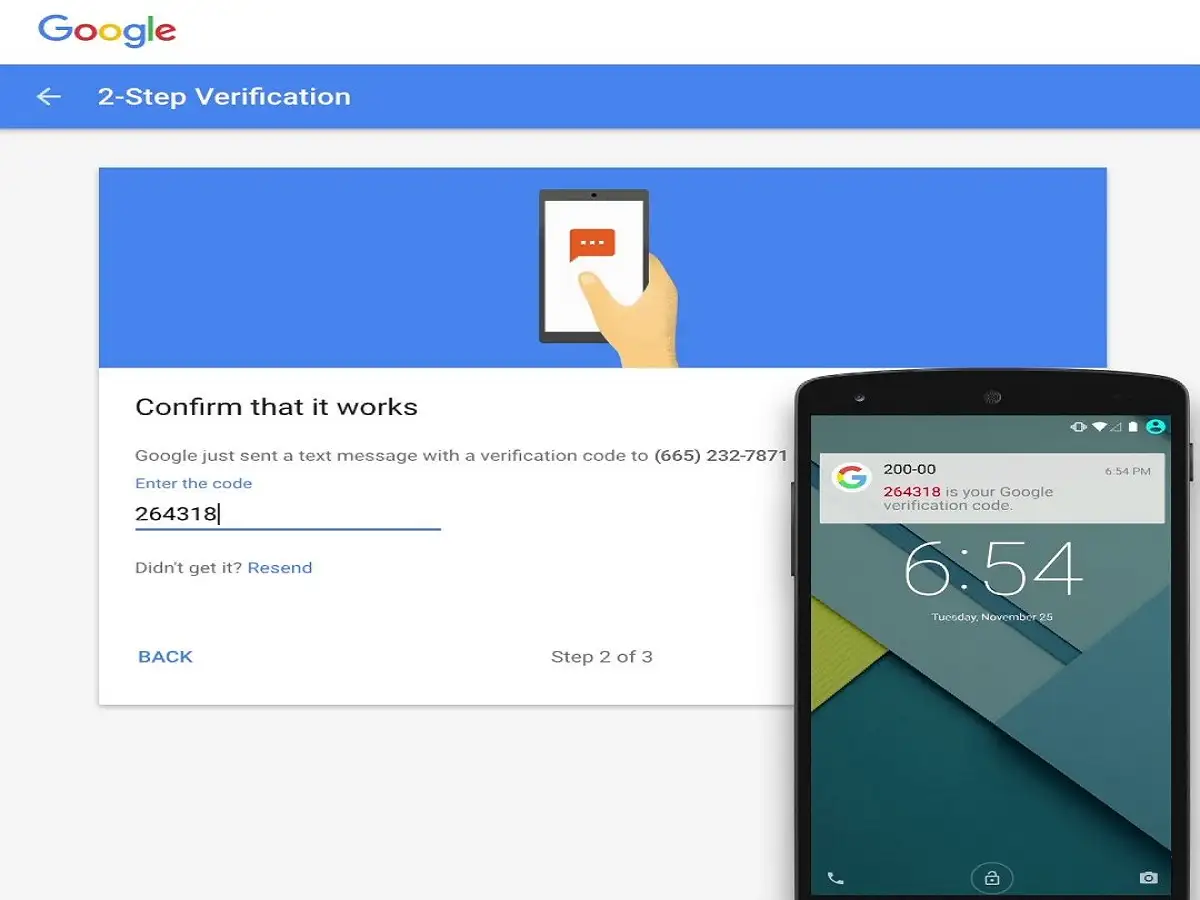
Google's 2-Step Verification adds another security check during sign-in, making it more difficult for someone to access your account using only a stolen password.
Here's how the feature works and how you can enable it.
What Is Google 2-Step Verification?
2-Step Verification is an additional security feature for your Google Account.
Normally, signing in may require your username and password. With 2-Step Verification enabled, Google can require an additional method to confirm that the person attempting to sign in is actually you.
For example, after entering the correct password, you might be asked to approve a Google prompt on a trusted device, use an authenticator-generated code or complete another configured security step.
As a result, knowing the password alone may not be sufficient for an unauthorised person to gain access.
Why a Password Alone May Not Be Enough
Using a long, unique password is still important, but even a good password can be compromised.
A fraudulent website might trick someone into entering login details, malicious software could potentially capture credentials, or a password reused across multiple services could be exposed in a breach elsewhere.
Two-step authentication reduces the risk created by password theft because another verification factor is required.
However, 2-Step Verification should not be treated as an absolute guarantee against account compromise. Users should still be cautious about phishing attempts, suspicious login requests and unknown devices.
How to Turn On 2-Step Verification for Your Google Account
Google's interface can change over time or vary slightly between devices, but the general process is straightforward.
First, sign in to your Google Account using a trusted smartphone or computer.
Open the account-management area by selecting your profile picture and choosing Manage your Google Account.
Next, open the Security or Security & sign-in section, depending on the interface shown on your device.
Look for the section related to how you sign in to Google and select 2-Step Verification.
Google may ask you to enter your account password again before allowing you to change important security settings.
Follow the on-screen instructions to activate the feature and configure an additional verification method.
Which Verification Methods Can You Use?
Depending on your account, device and Google's current options, several security methods may be available.
These can include:
- Passkeys: Allow supported devices to verify your identity using a secure device-based method, such as a screen lock, fingerprint or face authentication.
- Security keys: Physical security devices can provide strong protection against many phishing attempts.
- Google Prompt: Google can send a sign-in request to an eligible trusted device for you to approve.
- Google Authenticator: An authenticator app can generate temporary verification codes for supported sign-ins.
- Phone-based verification: A phone number may be available as a verification or recovery option, depending on the account and Google's current settings.
- Backup codes: One-time backup codes can help you regain access when your normal verification method is unavailable.
The exact choices shown may differ between accounts.
Google Authenticator Can Generate Verification Codes
Google Authenticator is one option for generating time-based verification codes.
After it has been properly linked to your Google Account, the app can generate temporary codes that may be requested during sign-in.
An authenticator-based method can be useful because it does not depend on receiving a normal SMS each time a code is required.
However, users should make sure they have an appropriate recovery method available in case their phone is lost, damaged or replaced.
Keep Your Backup Codes Secure
If Google provides backup codes, treat them like sensitive login credentials.
Do not store them publicly, send them through unsecured chats or share them with another person. Keeping them in a secure location can be useful if you lose access to your primary second-step method.
A backup code that falls into the wrong hands could potentially be misused, so it should never be treated like an ordinary reference number.
Never Approve a Login Request You Didn't Make
Enabling 2-Step Verification is only useful if you respond carefully to verification requests.
If you unexpectedly receive a Google sign-in prompt, do not approve it simply to make the notification disappear. An unexpected request could indicate that someone is attempting to access your account.
Review unfamiliar login activity and change your password if you suspect that your credentials have been compromised.
Similarly, never give an authenticator code, backup code, password or other security credential to someone claiming to be customer support.
Why 2-Step Verification Is Worth Using
Adding a second verification step can significantly strengthen account security by creating another barrier beyond the password.
That protection matters because compromising one Google Account can potentially expose several connected services, including Gmail, Drive, Photos and Docs.
For stronger protection, combine 2-Step Verification with a unique password, updated recovery information and regular reviews of devices signed into your account.
Security features cannot eliminate every online threat, but making a stolen password insufficient on its own can substantially improve the protection of your Google Account and the personal information connected to it.