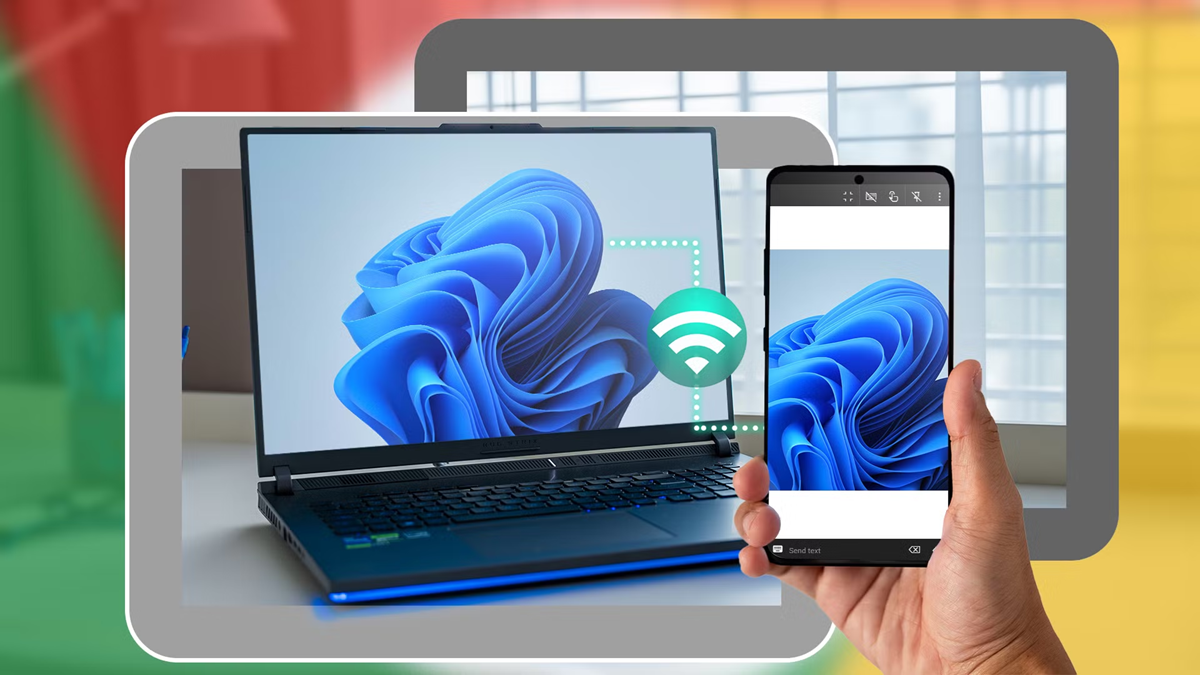
With this Microsoft feature, connect your Android phone to your Windows PC and manage calls, messages, and notifications from your computer. Learn how to easily link your phone and PC.
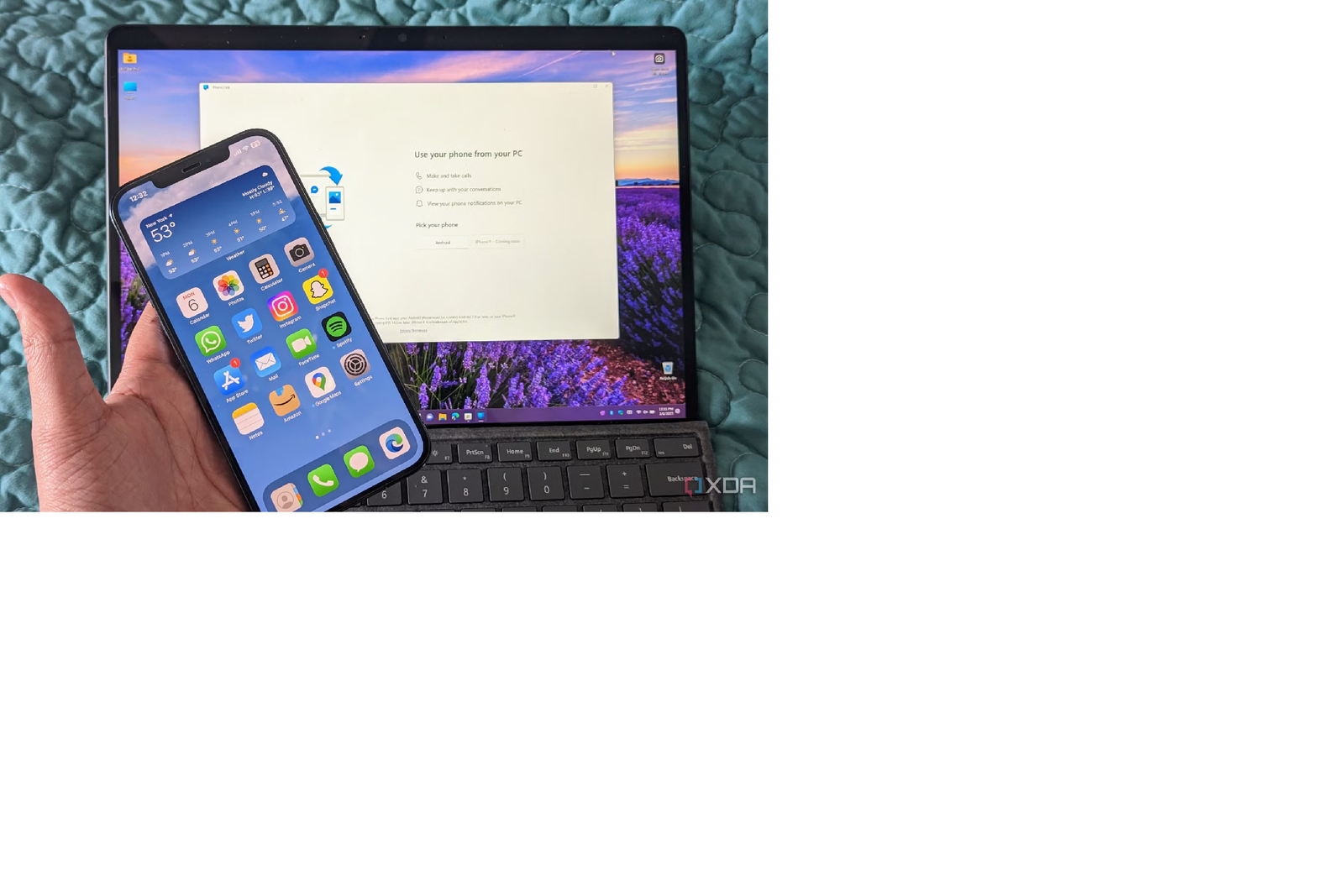
Connecting an Android Phone to a Windows PC
Constantly checking your phone screen while working can often be a hassle. Sometimes you need to respond to a message, or sometimes you need to take your eyes off your computer to check an important call or notification. If you want to avoid constantly reaching for your phone while working on your laptop or PC, Microsoft's Phone Link feature can be helpful.
It allows you to connect your Android smartphone to a Windows PC. You can then read messages, make calls, and view notifications directly from your computer screen. Furthermore, recent photos from your Android phone can also be viewed and used in other apps on your PC. So, let's learn how to connect your phone and computer using Phone Link.
What is Microsoft Phone Link?
Phone Link is a Microsoft app that helps connect smartphones and Windows computers. It allows users to access various phone features directly from their PC, eliminating the need to unlock their phones each time. This feature is available for Android smartphones and iPhones, although the features may differ.
How to connect your Android phone to your Windows PC
1. Open the search box in the taskbar of your Windows PC and start the app by typing Phone Link.
2. Select the Android option in the app and sign in with your Microsoft account.
3. Install the Link to Windows app on your phone by following the instructions on your computer, or open the existing app using the link displayed on your PC.
4. Log in to your phone with the same Microsoft account you used on your computer.
5. Select the Pair with QR code option on your PC. Then, scan the QR code displayed on your computer screen using the Link to Windows app on your phone.
6. Once the connection is complete, grant the phone the required permissions it requests. This will give the app access to messages, contacts, calls, and other related features.
What is required to connect the phone and PC?
To use this feature, your PC must be running Windows 10 or later. Android phones require Android 7.0 or later. Phone Link is required on your computer, and the Link to Windows app is required on your Android phone. You must be signed in with the same Microsoft account on both devices. Connections can be made using Wi-Fi, mobile data, or Instant Hotspot.