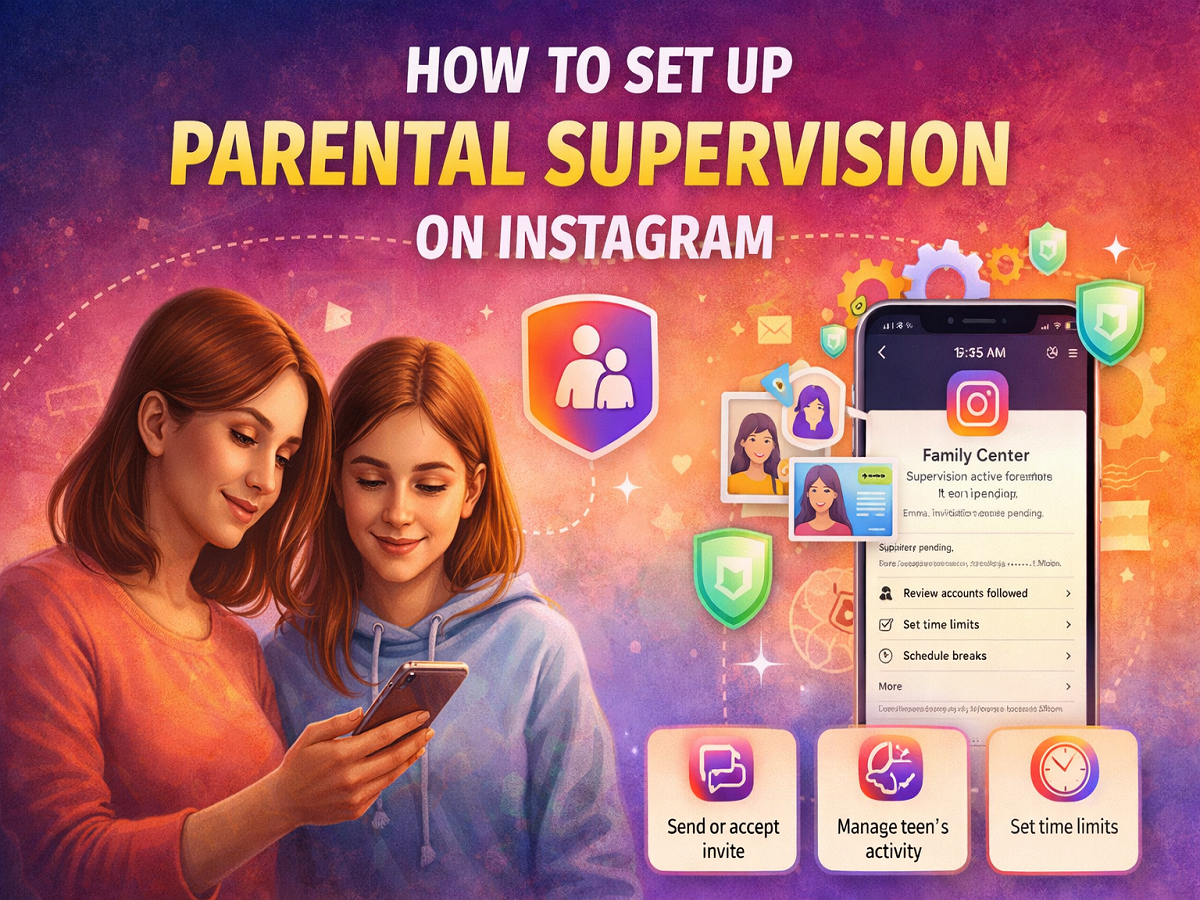
With growing concerns around teenagers’ online safety, Instagram has introduced a Parental Supervision feature designed to help parents stay involved in their child’s digital life. This optional tool allows guardians to monitor activity, set usage limits, and ensure a safer social media experience for teens aged 13 to 17.
If you’re a parent or guardian looking to enable this feature, here’s a complete step-by-step guide along with everything you need to know before setting it up.
What Is Instagram’s Parental Supervision Feature?
The Parental Supervision feature enables parents to oversee their teenager’s Instagram usage while respecting privacy boundaries. It provides insights into account activity and allows parents to set time limits and manage how long their child spends on the app.
However, the feature is entirely voluntary. Both the parent and the teen must agree to activate supervision, and either party can choose to end it at any time. Importantly, Instagram will notify the other person if supervision is removed.
Requirements Before Setting Up Supervision
Before you begin, make sure the following conditions are met:
- Both the parent and the teen must have the latest version of the Instagram app installed.
- Each user must have an active Instagram account.
- The teen must be between 13 and 17 years old.
- Both parties must consent to enabling supervision.
- Only one parent or guardian can supervise a teen’s account at a time.
These prerequisites ensure that the feature functions smoothly and securely.
How to Set Up Parental Supervision on Instagram
To activate supervision, an invitation must be sent and accepted. Either the parent or the teen can initiate this process.
Steps to Send a Supervision Invite
- Open the Instagram app on your smartphone.
- Tap your profile icon located at the bottom-right corner.
- Go to Settings.
- Select the Supervision option.
- Tap on Family Center.
- Click Create Invite.
- Review the details and tap Create Invite again.
- Share the invite link with your teen (or parent) via messaging apps or copy and paste the link manually.
How to Accept a Supervision Invite
Once the invitation is received, the other person can accept or decline it.
- Simply tap on the Accept button in the notification.
- If a parent sends the invite, supervision begins immediately after acceptance.
- If a teen sends the invite, supervision will only start after the parent accepts and the teen confirms that the correct parent has been selected.
This two-step verification ensures that only authorized guardians gain access.
What Parents Can Do After Setup
Once parental supervision is enabled, parents gain access to several helpful tools:
1. Monitor Activity
Parents can view their teen’s followers and the accounts they follow, helping them understand their social interactions.
2. Set Usage Limits
Guardians can schedule breaks and restrict Instagram usage during certain times, such as study hours or bedtime.
3. Access Account Insights
Parents can check how much time their teen spends on Instagram and adjust limits accordingly.
These features aim to strike a balance between supervision and independence.
Why This Feature Matters
In today’s digital age, teenagers spend a significant amount of time on social media platforms. While these platforms offer opportunities for creativity and connection, they also come with risks such as excessive screen time, exposure to inappropriate content, and online interactions with strangers.
Instagram’s supervision tools empower parents to guide their children responsibly without being overly intrusive.
Final Takeaway
The Parental Supervision feature on Instagram is a valuable tool for families looking to create a safer and more controlled online environment for teenagers. By combining transparency, consent, and practical controls, it allows parents to stay informed while giving teens the space to explore responsibly.
Setting it up takes only a few minutes, but it can make a significant difference in ensuring a secure and balanced digital experience for your child.