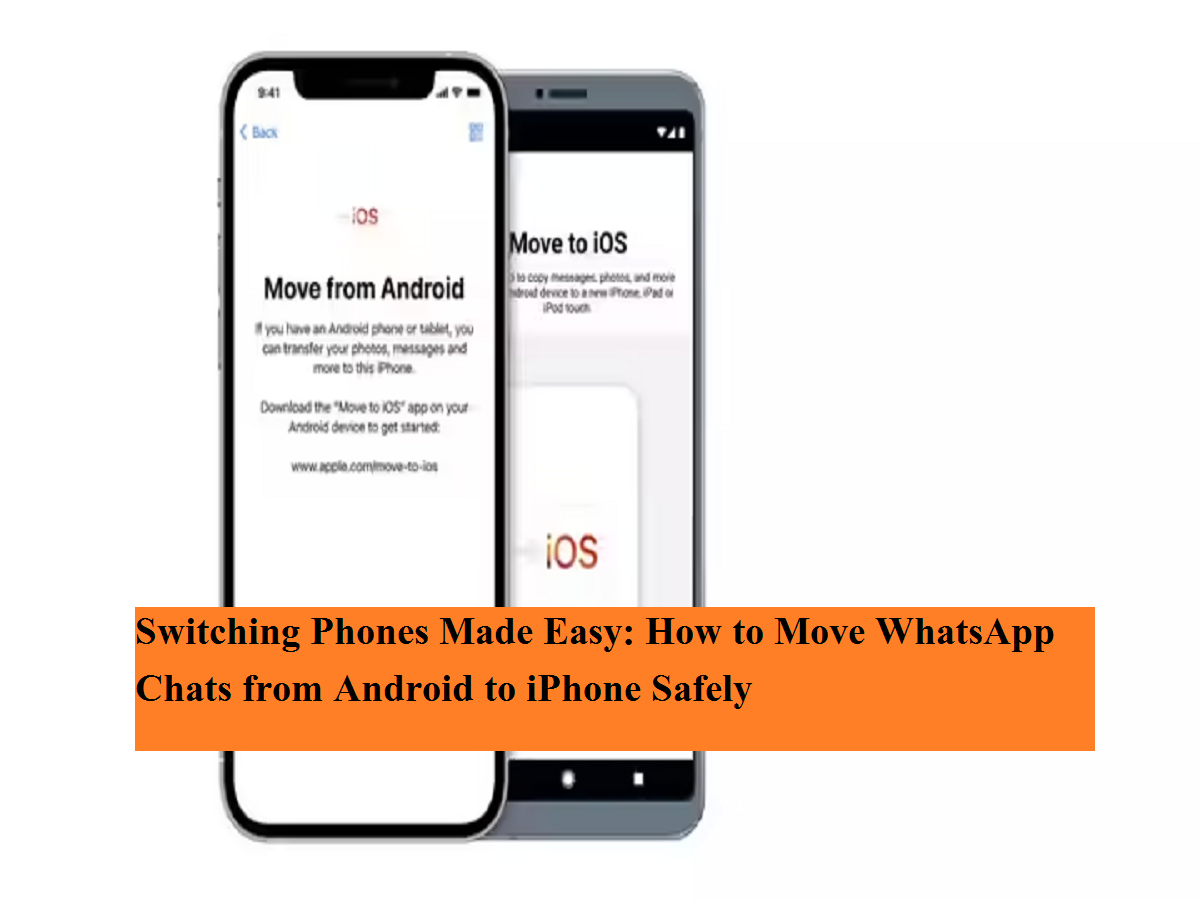
Changing your smartphone from Android to iPhone is an exciting upgrade, but one major concern for most users is transferring WhatsApp chats. Messages often contain years of conversations, photos, videos, documents, and group discussions that people don’t want to lose. Thankfully, WhatsApp officially supports chat migration from Android to iOS using Apple’s Move to iOS app.
Earlier, switching platforms meant starting WhatsApp from scratch. Now, Meta and Apple have made the process much smoother. With the right preparation and a few simple steps, you can securely move your WhatsApp chat history from an Android phone to an iPhone without using cables or third-party tools.
What WhatsApp Data Can Be Transferred?
Before starting, it’s important to understand what data will move to your new iPhone:
- Individual and group chat messages
- Photos, videos, voice notes, and documents
- Account information and settings
However, WhatsApp call history and payment messages will not be transferred during this process.
Things You Need Before Transferring WhatsApp Chats
To ensure a smooth migration, both devices must meet certain requirements:
- Android phone must be running Android 5 (Lollipop) or later
- iPhone should be new or factory reset
- Move to iOS app installed on the Android device
- Both phones connected to the same Wi-Fi network
- Both devices connected to a power source
- Same phone number must be used on WhatsApp
Meeting these conditions avoids interruptions during data transfer.
Step-by-Step Guide: Transfer WhatsApp Chats from Android to iPhone
Follow these steps carefully:
- Turn on your new or reset iPhone and begin the setup process.
- On the “Apps & Data” screen, select Move Data from Android.
- Open the Move to iOS app on your Android smartphone.
- A verification code will appear on the iPhone screen. Enter this code on your Android device when prompted.
- Tap Continue and allow the required permissions.
- Select WhatsApp from the list of data types and tap Start.
- Wait for WhatsApp to prepare the data for transfer.
- Once done, tap Next and allow the transfer to complete.
- Install WhatsApp on your iPhone, verify your phone number, and tap Start to restore chats.
Your chats will now appear exactly as they were on your Android device.
Important Tips to Remember
- Do not close apps or disconnect Wi-Fi during transfer
- Keep both phones unlocked and charging
- Data transfer time depends on chat size and media
Final Thoughts
Switching from Android to iPhone no longer means losing your WhatsApp memories. With the official Move to iOS solution, users can safely and securely migrate their chats without technical hassle. Preparing both devices properly and following the steps in order ensures a smooth transition. If WhatsApp conversations matter to you, this method is the most reliable way to carry them forward to your new iPhone.